

Access Remote Devices Anytime, Anywhere! - Self-hosted Remote Network VPN - Easytier Deployment Guide
Preface
Sometimes we need to access remote devices that are not in the same internal network environment when we're outside. Setting up services like Frp can be very troublesome and inflexible. That's when we need a VPN service. But traditional VPN services have high setup costs: servers are too expensive, and setup is very complicated. So, is there a low-cost, easy-to-deploy VPN service? Yes. This article will introduce you to a self-hostable civilian VPN networking service called Easytier.
Declaration
This VPN is not the proxy for bypassing internet restrictions that most people understand, but a Virtual Private Network. This technology allows you to establish a dedicated virtual network channel over a public network to connect devices in different network environments. With this technology, you can use a dedicated IP to connect to your devices in an external network, just like using an internal network IP address at home.
Setup Requirements
- A cloud/local server with public
IPv4address (bandwidth not required) Home broadband with NAT level >= 3 (not mandatory)
Note: If the NAT level does not meet this requirement and
IPv6is not available, it may not be possible to establishP2PconnectionsA thinking brain
Why Choose EasyTier
- Convenient deployment, strong deployability
- Supports both centralized/decentralized deployment
- Has a comprehensive WebUI for easy management
- Does not force HTTPS
- Easy device access
- Supports multiple device platforms (
Linux,Windows,Android,MacOS,HarmonyOS) - Supports multiple device architectures (
x86,x86-64,armhf,arm64,riscv,mips,loongarch) I willThis article may require an internet environment that can bypass restrictions
1. Server Configuration
This tutorial is for Linux platform servers
1.1 Download
EasytierServer- Go to Easytier Official Release Page to download the distribution corresponding to your server environment, and extract it to any directory
Use the following commands to grant executable permissions to the binary files
chmod +x ./easytier-core chmod +x ./easytier-web-embedeasytier-coreis the core program of the entire Easytier. Both the server and client use this program to establish connections.easytier-web-embedis a web server embedded with a page for managing Easytier connections. If you don't need such a tool, or want to use the public web page, you can also choose not to enable this program
1.2 Deploy
EasytierServiceTo ensure that Easytier can still run normally after the server is unexpectedly powered off and restarted, we need to deploy Easytier as a Linux service. Here we use
systemctlfor deploymentUse the following commands to create services for the core and Web UI respectively
sudo vim /etc/systemd/system/easytier-core.service
sudo vim /etc/systemd/system/easytier-web-embed.service
Fill in the following content in
easytier-core.service[Unit] Description=easytier-core After=network.target [Service] Type=simple ExecStart=<path/to/easytier-core> -w udp://127.0.0.1:22020/<UserName> --machine-id aliyun-sh User=root Restart=on-failure RestartSec=5 [Install] WantedBy=multi-user.targetFill in the following content in
easytier-web-embed.service[Unit] Description=easytier-web-embed After=network.target [Service] Type=simple ExecStart=<path/to/easytier-web-embed> --api-server-port 11211 --api-host http://127.0.0.1:11211 --config-server-port 22020 --config-server-protocol udp User=root Restart=on-failure RestartSec=5 [Install] WantedBy=multi-user.targetAfter saving, enable the startup of both services respectively, then start the Web UI service first
sudo systemctl daemon-reload
sudo systemctl enable easytier-web-embed
sudo systemctl enable easytier-core
sudo systemctl start easytier-web-embed
Use this command to check the service running status, if there are no exceptions, it is running
sudo systemctl status easytier-web-embedEnter the Web UI (address is
http://<Server IP>:11211), fill inhttp://<Server IP>:11211inAPI Host, and register an account at the location shown in Figure 1-2-1.Note: The username should be the same as the
<UserName>field filled in when registering the core service just now
Figure 1-2-1 After successfully registering an account, log in to the Web UI and use this command to start the easytier-core service.
sudo systemctl start easytier-core- Switch to the
Device Listcolumn in the sidebar of the Web UI. If the configuration is correct, you should see your server as shown in Figure 1-2-3.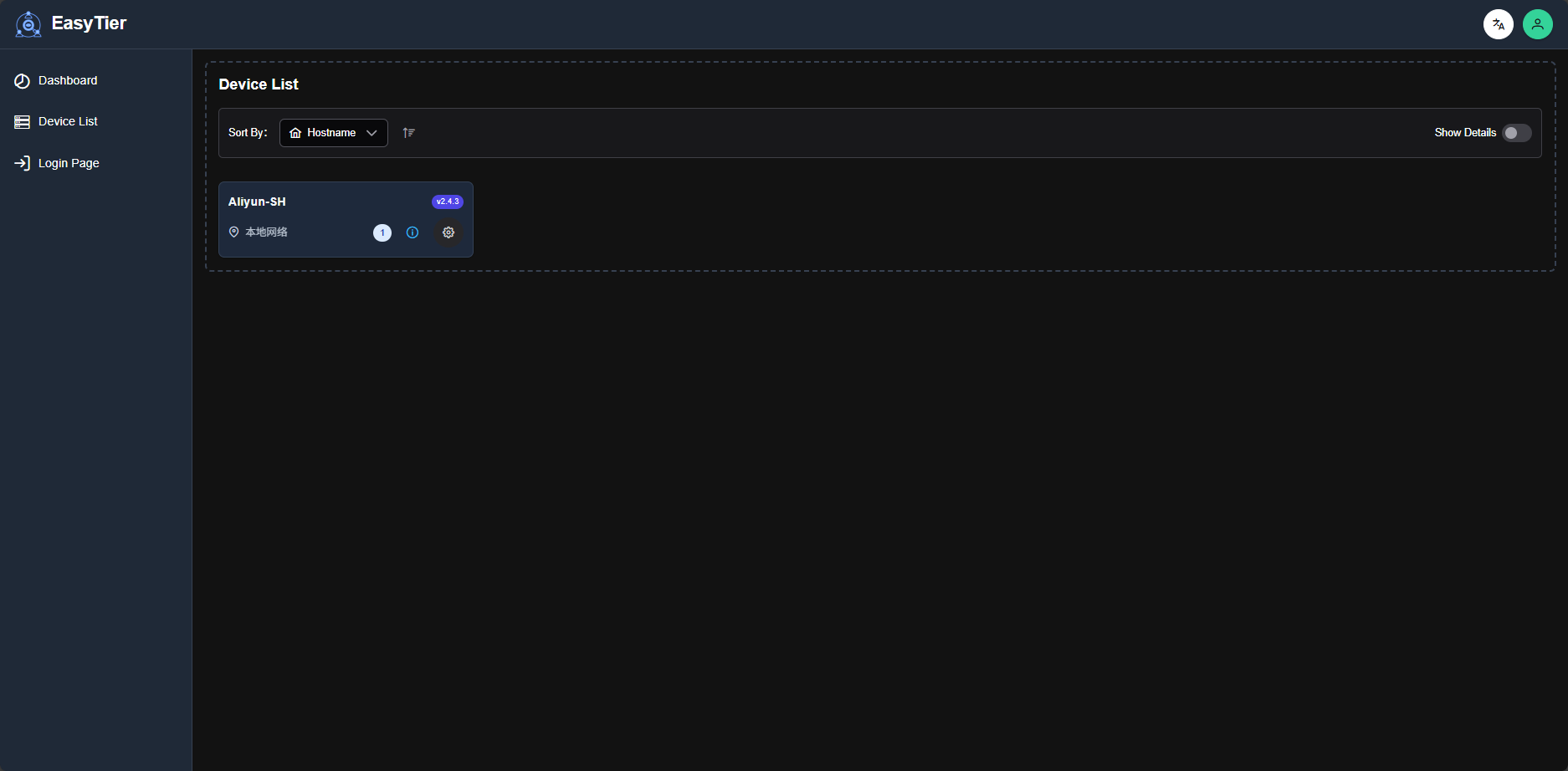
Figure 1-2-3 Click the gear icon of the device, which is the settings button, to jump to the page for creating a new connection. Fill in your VPN information on this page.
Note: If you are establishing a new VPN network segment, the IP address segment you set will become the network segment of this VPN. If you use
DHCP, the server will automatically assign an available network segment.
For example: If your IP address is set to10.0.0.1, the network segment of the VPN will become10.0.0.x, and subsequent devices that join will be assigned to this network segment.Network Name: The identifier of the VPN network segment. If you want other devices to join this VPN, theNetwork Nameset on those devices should be the same.
Note: Easytier identifies different VPNs by thisNetwork Name, and oneNetwork Namecorresponds to one VPN.Network Secret: The password for the VPN.Networking Method: Network connection method. After selectingManual, fill intcp://<IPAddr>:11010,udp://<IPAddr>:11010. Please click the button shown in Figure 1-2-4 to add to the list after entering each item, otherwise it will not take effect.
Figure 1-2-4 Public Server: Easytier's public server. If you want to use the public server to establish VPN connections, you can directly use this option.Manual: Manually configure the server. Suitable for most centralized deployment scenarios.Standalone: Use this device as an independent server.
Advanced Settings: Advanced settings. If you have a certain network engineering foundation, you can configure it according to your needs, otherwise please leave it as it is.
You can refer to the Easytier Official Documentation to configure the settings here.Port Forward: Port forwarding. Same as above.
At this time, use this command to view the output of easytier-core
sudo systemctl status easytier-coreThe status output after correct configuration should be similar to that shown in Figure 1-2-5
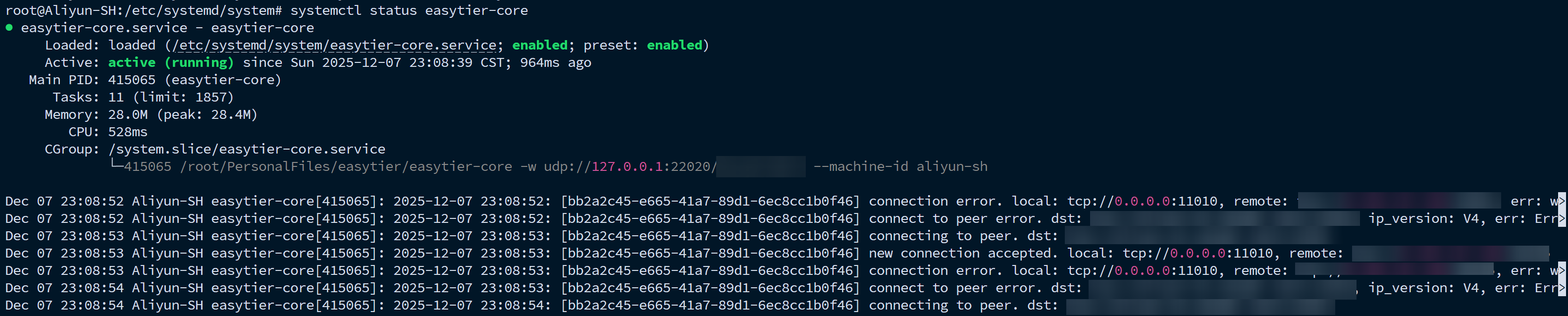
Figure 1-2-5 2. Client Configuration
Linux Client
Linux has two configuration methods: GUI desktop program configuration and CLI command line program configuration. Since GUI is less used on Linux platforms, only CLI program configuration is taught here. This method applies to both client machines and servers. Of course, if you want to configure the GUI program, you can refer to the Windows platform GUI configuration below.
2.1 Download Program
- Download the compressed package suitable for Linux version according to your device platform from the Official Release Page (example filename
easytier-linux-x86_64-v2.4.5.zip), and extract it to your device. Use the following command to grant executable permission
chmod +x ./easytier-core2.2 Configure Program
Before registering as a service, we first test the program.
Use this command to start the Easytier client
./easytier-core <IP Mode> --network-name <Network Name> --network-secret <Network Secret> -p <Server Address> <Optional Config>IP Mode: Expected IP address. If you want to configure a static IP address, please use the--ipv4 <IP Address>parameter. If you want to configure a DHCP address, please use the--dhcpparameterNetwork Name: The identifier of the VPN network segment.Network Secret: The password for the VPN. To join this VPN, you must enter the same password, no need for further explanation.Server Address: Server address. It is recommended to useTCPto connect to the server, so the format for filling in this address is:tcp://<Server IP>:11010.Optional Config: Additional parameters. It is recommended to add the--multi-threadparameter here to enable multi-threading. If you want to add other more parameters, please refer to the Easytier Official Documentation
After starting the program, if the output log is normal, it means this configuration is valid. Normal log output should be as shown in Figure 2-2-1, including prompts for successful connection with other peers.
Figure 2-2-1
2.3 Register Service
Here we also use
systemctlto register the service.Use this command to create a service for
easytier-coresudp vim /etc/systemd/system/easytier-core.serviceAdd the following content to this file
[Unit]
Description=easytier-core
After=network.target

[Service]
Type=simple
ExecStart=<path/to/easytier-core> <Config>
User=root
Restart=on-failure
RestartSec=5

[Install]
WantedBy=multi-user.target
Use the following commands to reload
systemctland start the servicesudo systemctl daemon-reload sudo systemctl enable easytier-core sudo systemctl start easitier-coreUse this command to check the logs of the service
sudo systemctl status easytier-coreThe correct log output should be as shown in Figure 2-2-2, including prompts for successful operation and peer information.
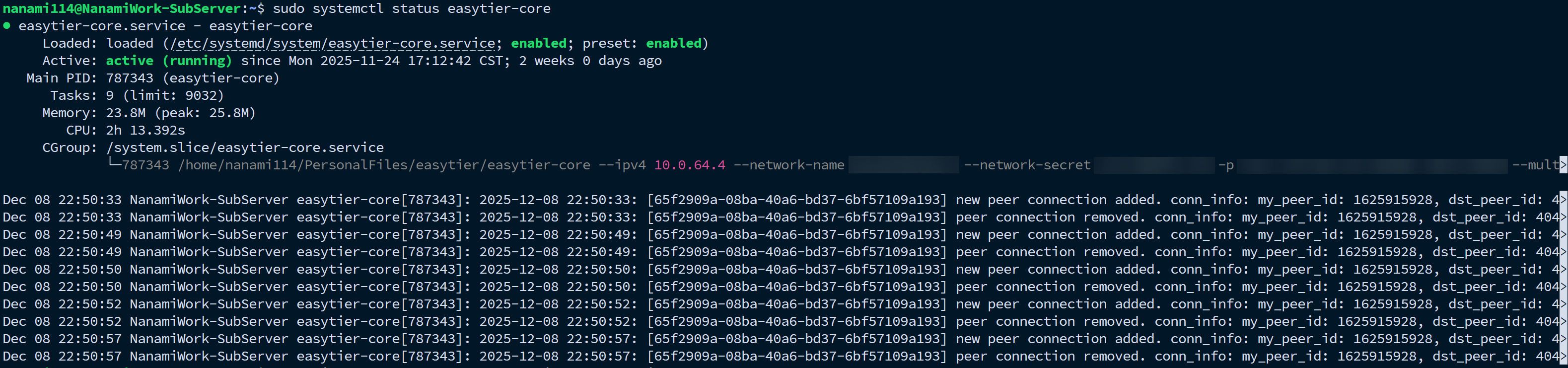
Figure 2-2-2
This completes the configuration.Windows Client
Windows has two configuration methods: GUI desktop program configuration and CLI command line program configuration. If your configuration target is a server, it is recommended to use the CLI method for configuration. If it is a regular home computer, it is recommended to use the GUI method for configuration.
2.1 GUI Configuration
- Download the GUI program suitable for Windows version from the Official Release Page (example filename
easytier-gui_2.4.5_x64-setup.exe), and install it on your computer. Start the program after installation. Configure your private VPN as needed according to the prompts below.
Virtual IPv4: The virtual IPv4 address of your device in the VPN network. As a client, if there are no special needs, it is recommended to checkDHCPto automatically obtain an available IP address.Note: If you are establishing a new VPN network segment, the IP address segment you set will become the network segment of this VPN. If you use
DHCP, the server will automatically assign an available network segment.
For example: If your IP address is set to10.0.0.1, the network segment of the VPN will become10.0.0.x, and subsequent devices that join will be assigned to this network segment.
Network Name: The identifier of the VPN network segment.Network Secret: The password for the VPN.Networking Method: Network connection method. After selectingManual, fill intcp://<IPAddr>:11010,udp://<IPAddr>:11010. Please click the button shown in Figure 2-1-1 to add to the list after entering each item, otherwise it will not take effect.Figure 2-1-1 Public Server: Easytier's public server. If you want to use the public server to establish VPN connections, you can directly use this option.Manual: Manually configure the server. Suitable for most centralized deployment scenarios.Standalone: Use this device as an independent server.
Advanced Settings: Advanced settings. If you have a certain network engineering foundation, you can configure it according to your needs, otherwise please leave it as it is.You can refer to the Easytier Official Documentation to configure the settings here.
Port Forward: Port forwarding. Same as above.
You can refer to the blogger's configuration shown in Figure 2-1-2 as a reference.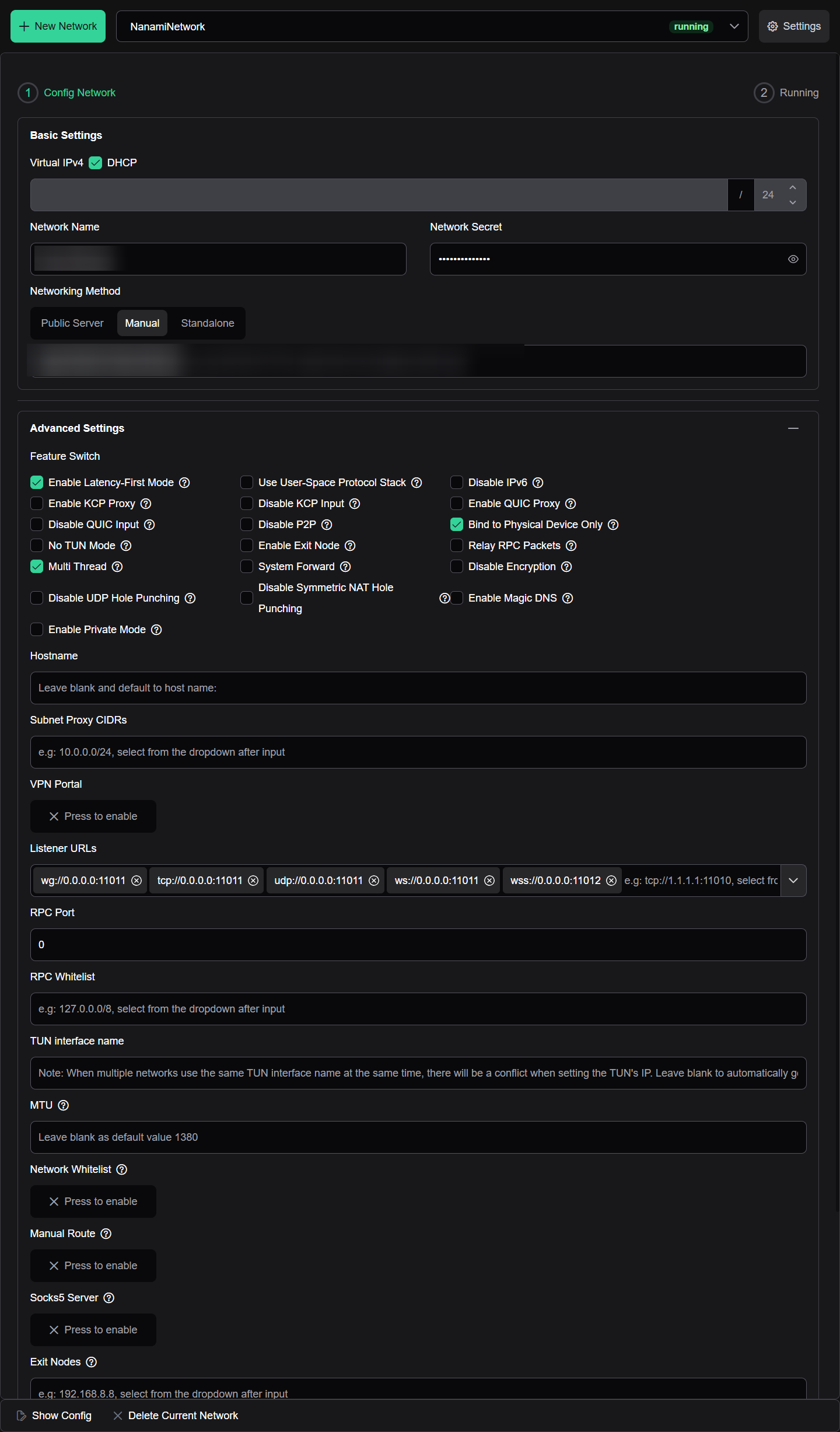
Figure 2-1-2
After configuration is complete, clickRun Networkto start the VPN service. If the configuration is correct and the network environment is ideal, you should be able to establish P2P connections between all devices.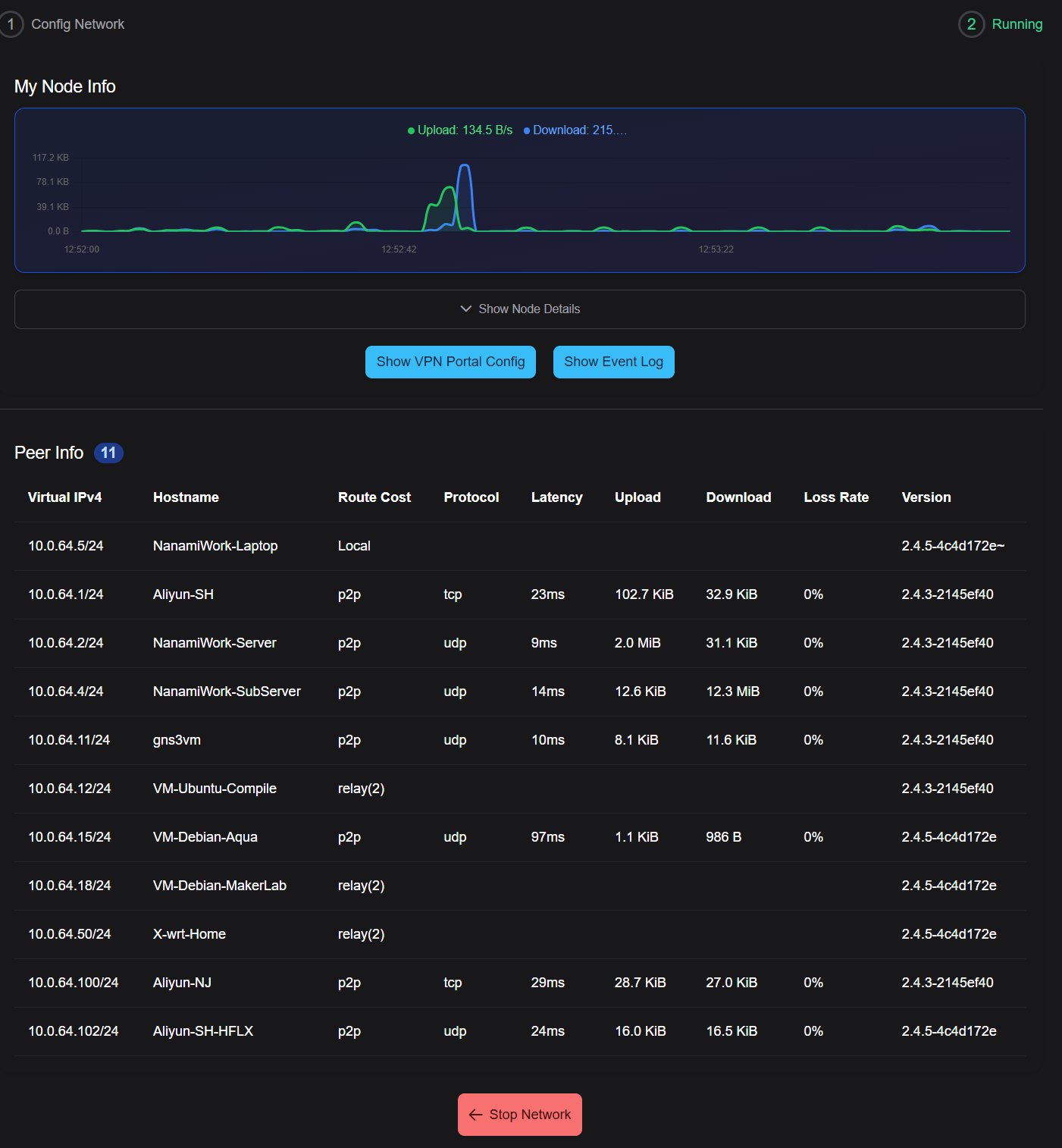
Figure 2-1-3 Note: If P2P cannot be established, i.e., in
relaystate, when accessing the node, Easytier will select a device with the lowest P2P latency for both parties to relay. The number next to therelaysymbol indicates the number of relay nodes passed through.2.2 CLI Configuration
The CLI configuration method is not much different between Windows and Linux platforms, so please refer to the Linux CLI program configuration method above. In the Windows section, I will only introduce the service configuration method.
The easytier-core executable itself has the function of registering services, here we can directly call the program itself to register Windows services. The command is as follows
sudo .\easytier-cli.exe service install `
  --description <Service Description> `
  --display-name <Service Name> `
  --disable-autostart `
  --core-path <path/to/easytier-core> `
  --service-work-dir <Work Dir> `
  -- <Config>
Service Description: Service description. Fill in whatever you wantService Name: Service name. Fill in whatever you want--disable-autostart: Disable auto-start. If you want to enable it, you can change it to--enable-autostart, or manually startservice.mscto make changes after execution.path/to/easytier-core: Path to theeasytier-coreprogramWork Dir: Working directory of theeasytier-coreprogram. It is recommended to directly fill in the directory where the executable file is placed.Config: Parameters passed when starting the program. The configuration method is the same as Linux CLI.
After the program prompts registration completion, use this command to start the service
sudo .\easytier-cli.exe service startAfter starting, you can use this command to check the service status
./easytier-cli service statusIf the service runs normally, the configuration ends here
Conclusion
- This article covers the configuration of Easytier from GUI to CLI, from Linux to Windows. It's not easy to write. If you find it useful, please leave your comments and share it with those in need. Thank you!
- I am not a professional. If there are any mistakes, please point them out directly. Thank you!
Hey would you mind letting me know which webhost you're
using? I've loaded your blog in 3 different web browsers and I must say this blog loads
a lot quicker then most. Can you recommend a good web hosting provider at a honest price?
Kudos, I appreciate it!
Hi there! Great to hear you're interested in this topic!
I’ve actually set up two physical servers at home to host all my services. Since home networks in China don’t have public IPv4 addresses, I use a technology called STUN. It’s a bit tricky to explain clearly, but you can look it up if you’d like to know more.
Basically, STUN is a technology that helps expose a local port to the internet, allowing anyone to access your service through that port. My main server hosts the actual services but doesn’t directly face the internet, while my secondary server handles all network-related services like STUN, reverse proxy, FRP, etc. So the flow of my services goes like this: Main Server (hosting services) → Sub Server (handles external traffic) → OpenWrt Router → Public Internet.
There’s a reverse proxy running on my secondary server—I use OpenResty. When an HTTP request comes to my website, it first passes through a CDN. The CDN then connects to the port on my secondary server that’s exposed by the STUN service, and finally reaches the OpenResty web server. OpenResty’s reverse proxy then forwards the request to the actual service hosted on my main server. That’s the complete path. It may seem complex, but it’s quite useful—you don’t even need to buy a cloud server unless you require very high stability.
If you have any questions, feel free to let me know. By the way, the best way to reach me about topics like this is via email. You’ll find my email address on my About (关于) page. Looking forward to your reply!
Hi there outstanding blog! Does running a blog
like this take a massive amount work? I've absolutely no
knowledge of programming however I was hoping to start my own blog soon. Anyway, if you have any recommendations or tips for
new blog owners please share. I understand this is off subject
but I simply wanted to ask. Thanks a lot!
It will actually take a massive amount work if you want to do it will, If you have any trouble in it, just contact me.
厉害OωO