

The Ultimate Campus Network! - A Single Ethernet Port Multi-Link Carrier Aggregation Solution for Campus Networks
Preface
As a new university student, I found the campus network to be quite unsatisfactory. Not only does each dorm room have only one Ethernet port for wired PPPoE dial-up, but each user is also limited to approximately 40 Mbps. This led to the idea of using a soft router to achieve single-port multi-session dial-up and carrier aggregation, thereby stacking broadband speeds.
Note: This tutorial is only suitable for campus network environments that support single-port multi-session dial-up. If your environment differs, do not follow this guide.
If your campus network supports multiple separate dial-up sessions on different ports but you still want to achieve this functionality, please refer to this tutorial.
Hardware / Environment Requirements
- A campus network interface that supports single-port multi-
PPPoEsession dial-up - A soft router running
X-wrtwith at least two RJ-45 Ethernet ports A switch of any type
Note: The original
OpenWrtseems unable to configureXwan, so you must chooseX-wrtwhich is based onOpenWrt.
Resource Download
1. Enable Xwan
- Log into the
LuCI WebUIand navigate toNetwork-->Xwan - Check the
Enablebox In the
Xwan Numberfield below, set the number of broadband connections you want to aggregateThe author aggregated four campus broadband lines (theirs and their roommates'), so entered 4.
Under
Internet Protocol, select the protocol you needThe author chose
IPv4 and IPv6here.Click
Save & ApplyNote: For
Xwan, the system automatically configures the necessary firewall rules and load balancing; no manual configuration is required.
2. Configure PPPoE Dial-up
- Navigate to
Network-->Interfaces
At this point, you should see one mainwanline and several sub-lines:Xwan01,Xwan02,Xwan03,Xwan04(depending on the number you set). - Set the corresponding dial-up username and password for each line.
- Click
Save & Applyafter configuring each.
If configured correctly, all lines should be able to dial up normally.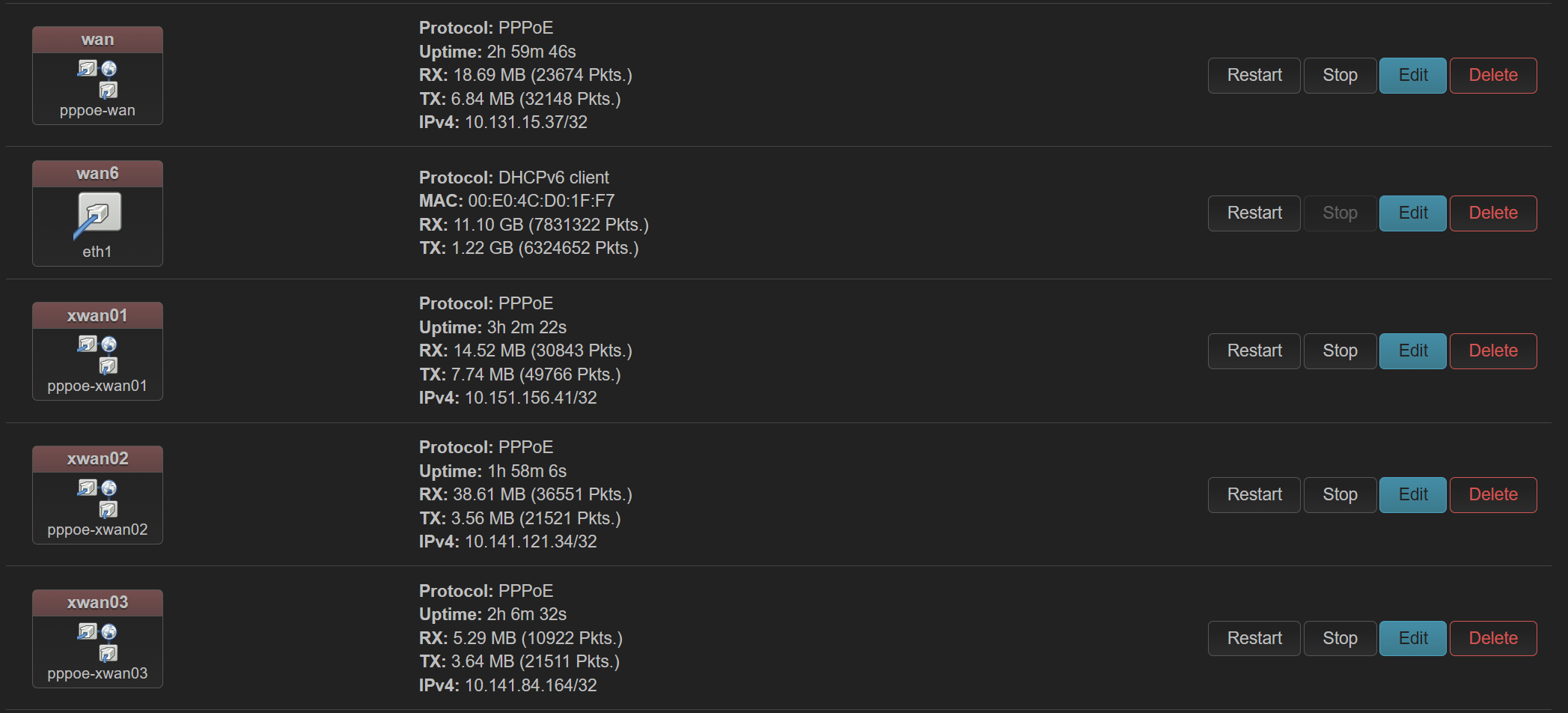
Normal Dial-up Status
Verification and Testing
- Use multi-threaded speed testing software or multi-threaded downloaders for verification. If the obtained speed is the aggregated total, the configuration is successful.
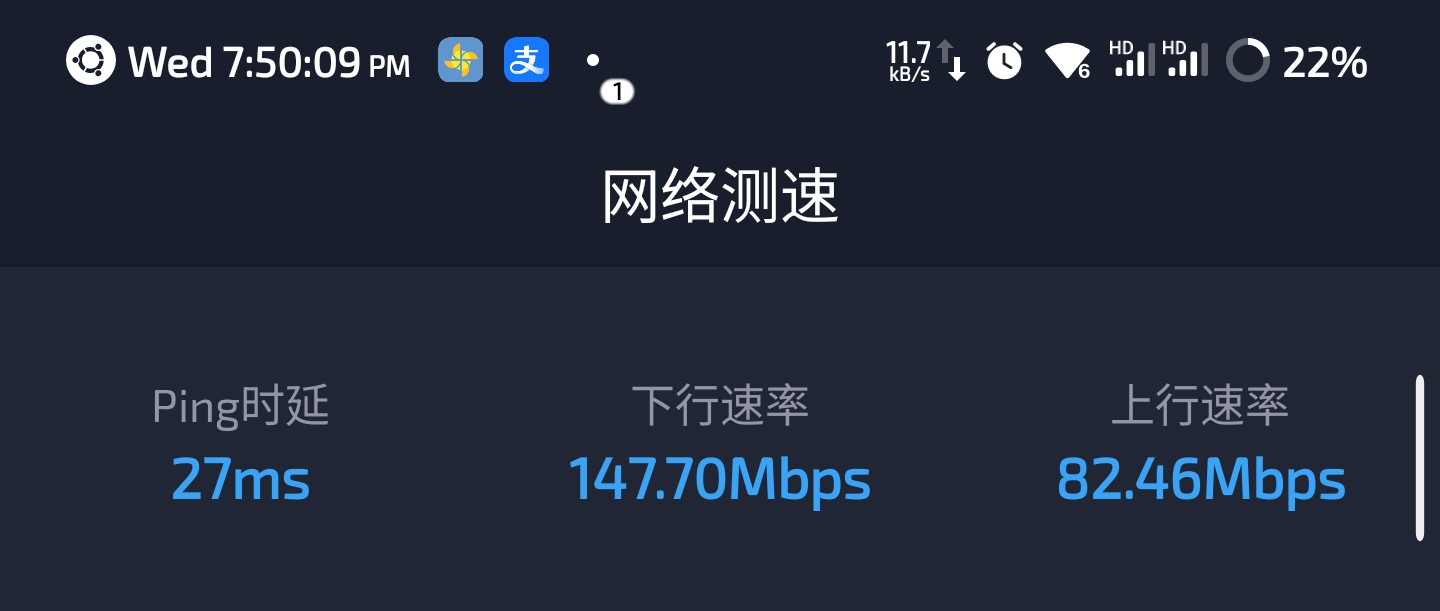
Speed Test Result
The author aggregated four 40 Mbps lines, so a result of 147.70 Mbps is expected.
Afterword
The author is not a professional networking engineer. If there are any omissions or errors, experts are welcome to point them out!
The Ultimate Campus Network! - A Single Ethernet Port Multi-Link Carrier Aggregation Solution for Campus Networks
https://blog.nanami.tech/en/archives/98/