There are 7583 words in total,Reading takes about 31 minutes
Preface
After subscribing to multiple broadband connections, if you still want to manage all devices through a single router while fully utilizing the combined speed of both connections, what should you do? The best solution is to implement dual WAN aggregation through a soft router to achieve broadband speed stacking. Below, I will explain how to perform this operation.
Requirements
A soft router running OpenWRT / X-wrt
Two or more broadband internet connections
Two super admin password obtained optical modems
You fully know the dial-up account and password for each broadband connection
If you meet all the above requirements, then let's start the tutorial
Glossary for This Article
ISP - Internet Service Provider, i.e., the carrier
Metric - The number of routers or gateways a data packet passes through from the source device to the destination device. The lower the metric value, the higher the priority.
1. Create Bridge Connection
To implement dual WAN aggregation, we first need to change the router's internet access mode to bridge mode. Here, we need to access the backend of both optical modems separately to create bridge connections. For detailed operations, please refer to other articles; this article will not elaborate on this.
2. Change Original Network Connection to PPPoE Mode
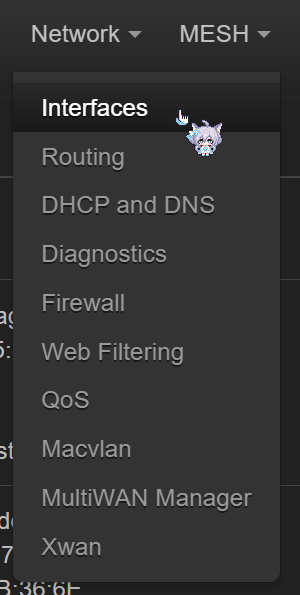
Access the OpenWRT backend, navigate to 网络 (Network) --> 接口 (Interfaces) page
Interfaces
Click the 编辑 (Edit) button for the wan interface
Change 协议 (Protocol) to PPPoE
Enter your broadband account in the PAP/CHAP username field and your broadband password in the PAP/CHAP password field
Note: The broadband account and password are not the same as the SSID and password of the optical modem's WiFi. If you don't know them, please contact your ISP and ask if they can inform you or change them!
After filling in the information, click 保存 (Save)
3. Create PPPoE Connection
Click the 添加新接口 (Add new interface...) button
Add new interface
Name it wan2, select PPPoE as the protocol, and choose the wan port corresponding to your second broadband connection
Change 协议 (Protocol) to PPPoE
Enter your broadband account in the PAP/CHAP username field and your broadband password in the PAP/CHAP password field
Navigate to the 高级设置 (Advanced Settings) page, and fill in the relevant settings according to your actual situation. If you don't know how to set it, you can completely copy the settings from the wan port. Here are the parameters I modified:
LCP echo failure threshold = 5
LCP echo interval = 5
Override MTU same as the wan port
Usr gateway metric = 1
Navigate to the 防火墙设置 (Firewall Settings) page, and change 创建/分配防火墙区域 (Create / Assign firewall-zone) to the same option as wan
Navigate to the DHCP 服务器 (DHCP Server) page, click 新建 DHCP 服务器 (Setup DHCP Server)
Check 忽略接口 (Ignore interface), then click 保存 (Save)
4. Create IPv6 Connection for New Interface
Click the 添加新接口 (Add new interface...) button
Name it wan2_6, select DHCPv6 client as the protocol, and choose the wan port corresponding to your second broadband connection
Navigate to the 高级设置 (Advanced Settings) page, and fill in the relevant settings according to your actual situation. If you don't know how to set it, you can completely copy the settings from the wan port.
Navigate to the 防火墙设置 (Firewall Settings) page, and change 创建/分配防火墙区域 (Create / Assign firewall-zone) to the same option as wan
Navigate to the DHCP 服务器 (DHCP Server) page, click 新建 DHCP 服务器 (Setup DHCP Server)
Check 忽略接口 (Ignore interface), then click 保存 (Save)
After completing all the above operations, click the 保存并应用 (Save & Apply) button at the bottom right of the page
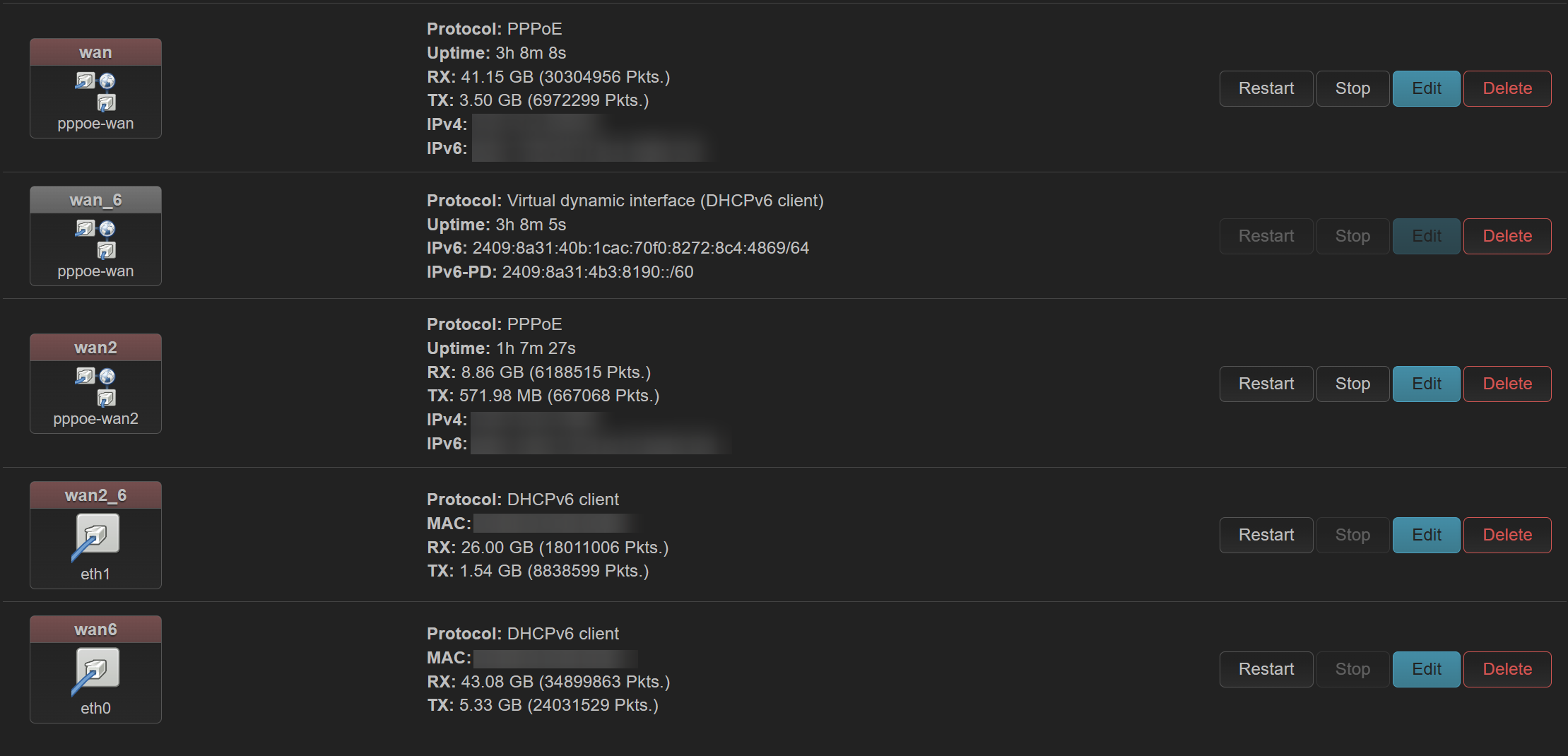
If your second broadband connection can successfully dial, then wan2 should correctly display IPv4 and IPv6 addresses. If not, please carefully check if your broadband account password, optical modem configuration, etc. are correct according to the error message. Correct configuration should look like this
5. Configure MultiWAN Load Balancing
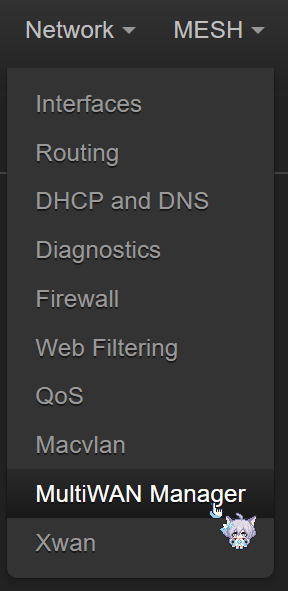
Navigate to 网络 (Network) --> 多 WAN 管理器 (MultiWAN Manager) page
MultiWAN Manager
Switch to the 接口 (Interface) page
Enter the name of the newly created interface, which is wan2, in the edit box at the bottom left, and click 添加 (Add)
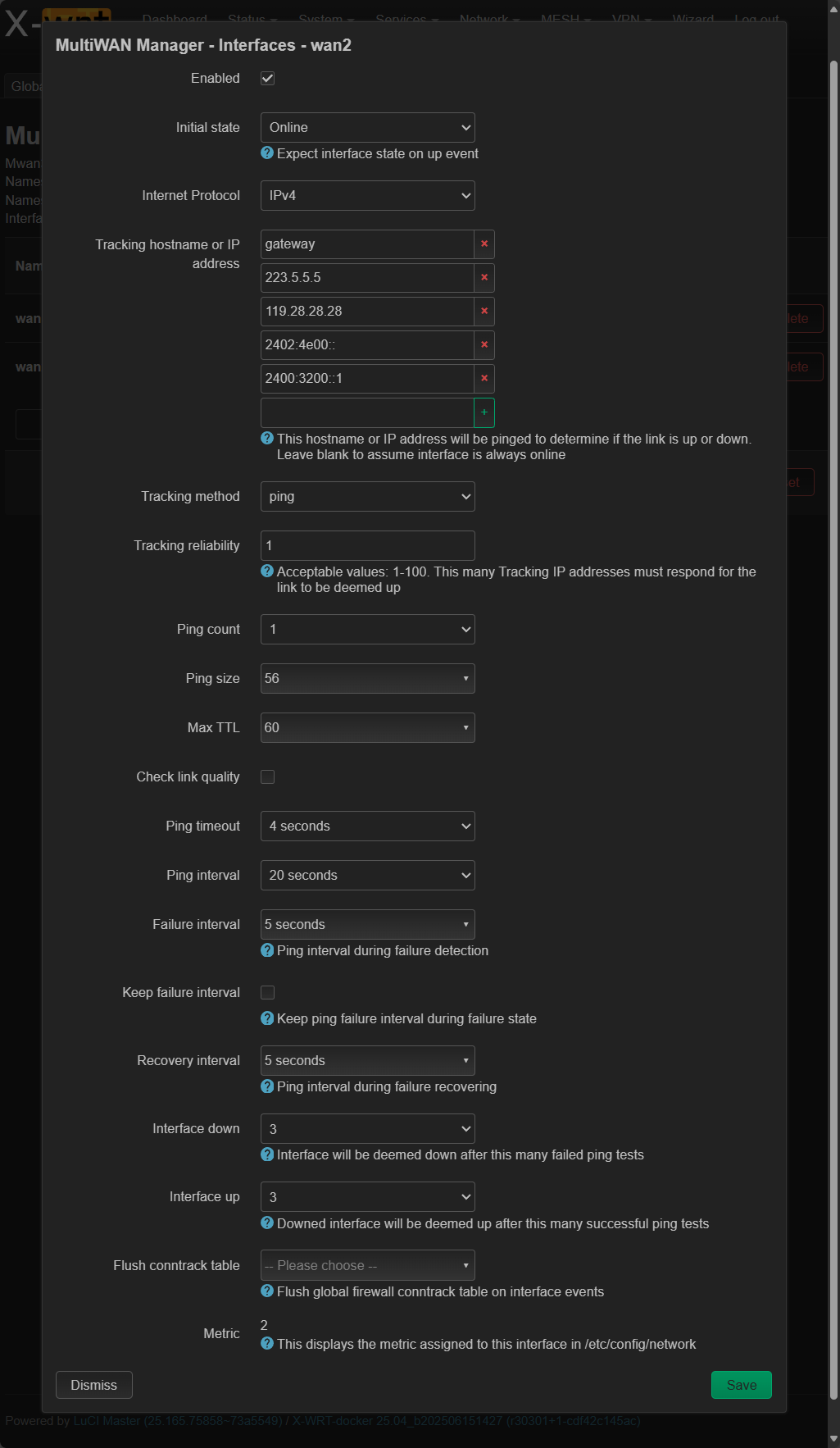
On the newly opened page, check 启用 (Enable), change 初始状态 (Initial state) to 在线 (Online), set 网络协议 (Internet Protocol) to IPv4, then set 跟踪主机名或 IP 地址 (Tracking hostname or IP address) to the same value as wan. All remaining parameters can be the same as wan. The figure below shows my settings for reference.
My parameters
Click 保存 (Save), and you should see both broadband connections have their corresponding interfaces set up.
After completing all the above operations, click the 保存并应用 (Save & Apply) button at the bottom right of the page
MultiWAN
Switch to the 成员 (Member) page, and name wan2 according to the required 跃点 (Metric) and 权重 (Weight) parameters
The naming structure should be wan2_m<Metric>_w<Weight>. For example: metric value 100, weight 100, which would be wan2_m100_w100.
After naming, click 添加 (Add) to complete the member setup
After completing all the above operations, click the 保存并应用 (Save & Apply) button at the bottom right of the page
Member setup
Switch to the 策略 (Policy) page, click the edit button for the balanced entry, add the wan2 member you just added in the 使用成员 (Member used) field, then click 保存 (Save).
Switch to the 规则 (Rule) page, click the 编辑 (Edit) button for all entries one by one, turn off the 黏性 (Sticky) switch for all entries, then click 保存 (Save).
After completing all the above operations, click the 保存并应用 (Save & Apply) button at the bottom right of the page
Policy
6. Restart the Router
After completing all the above operations, please manually restart the router
7. Verify Results
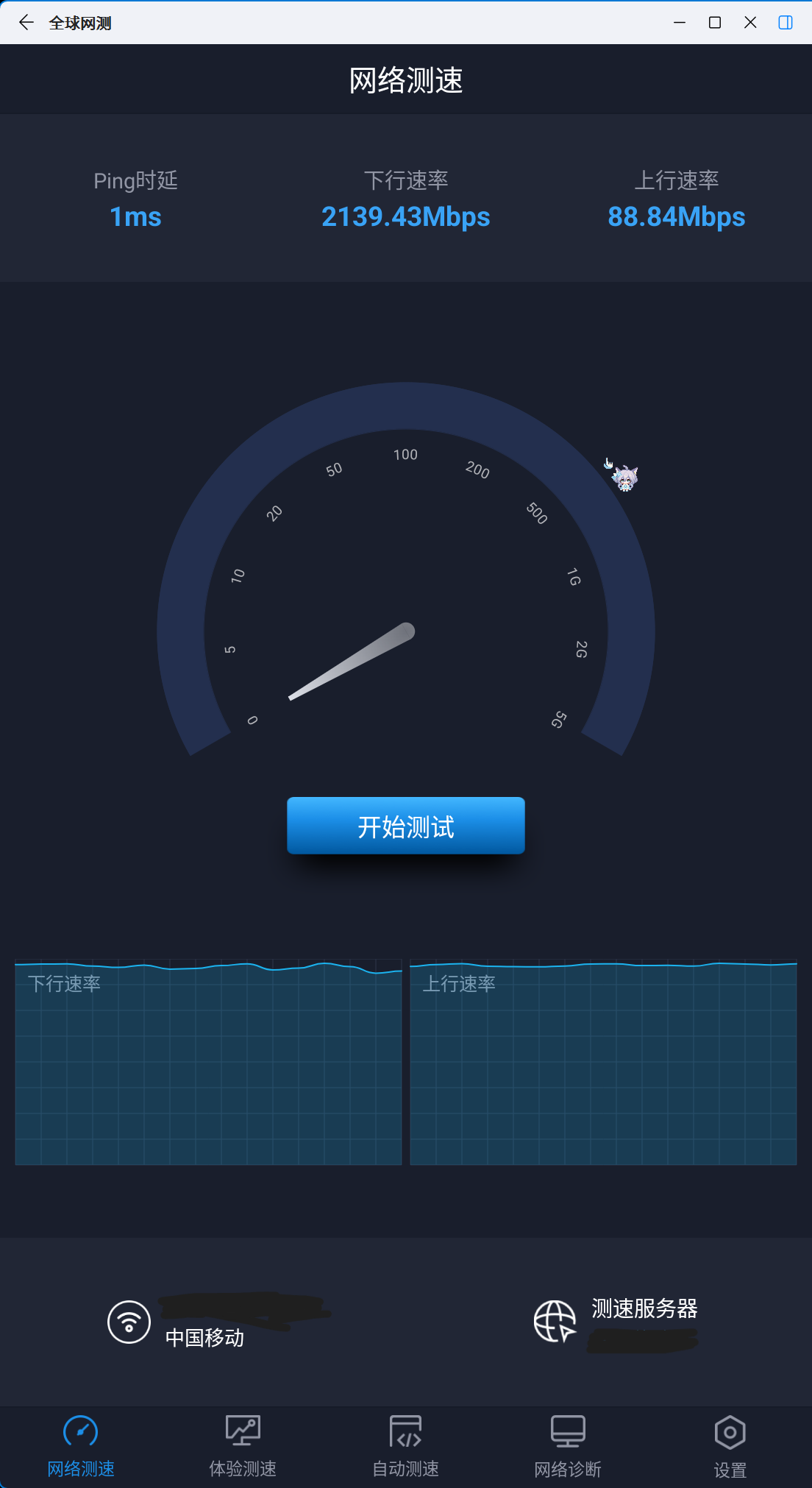
After the router restarts, first check if both broadband connections have successfully dialed. If there are no issues, you can start a ##multi-threaded speed test program##, such as Internet Download Manager (IDM), Ookla SpeedTest, or 全球网测. If your configuration is correct, you will see the total speed after stacking both broadband connections. Here, I used two China Mobile home broadband connections with 1000Mbps downlink and 40Mbps uplink speeds, and the test results are shown in the figure. Speed test result
Conclusion
Thank you for reading this article. If you found it helpful, please recommend it to people around you who need it. Thank you very much! If you have any suggestions or opinions, please feel free to share them!
OpenWRT Dual WAN Aggregation - Easily Stack Multiple Broadband Speeds!







pc端全球网测怎么访问 求解
我是装了安卓虚拟机, Win 11 的微软商店我记得有应用宝来着, 装那个环境就可以. 然后把全球网测的 apk 下载下来之后用 adb 安装就可以
好的,感谢大佬解答,有交流群学习吗 想学习搭建自己家的网络服务器 实现自建站点 网络环境净网等服务。
我暂时还没有建立什么公开的交流群, 不过有兴趣的话可以通过我关于页面留下的邮箱联系我, 让我知道是你之后我可以给你发送我的 QQ 号, 可以通过这个账号添加我的好友以便日后交流.