

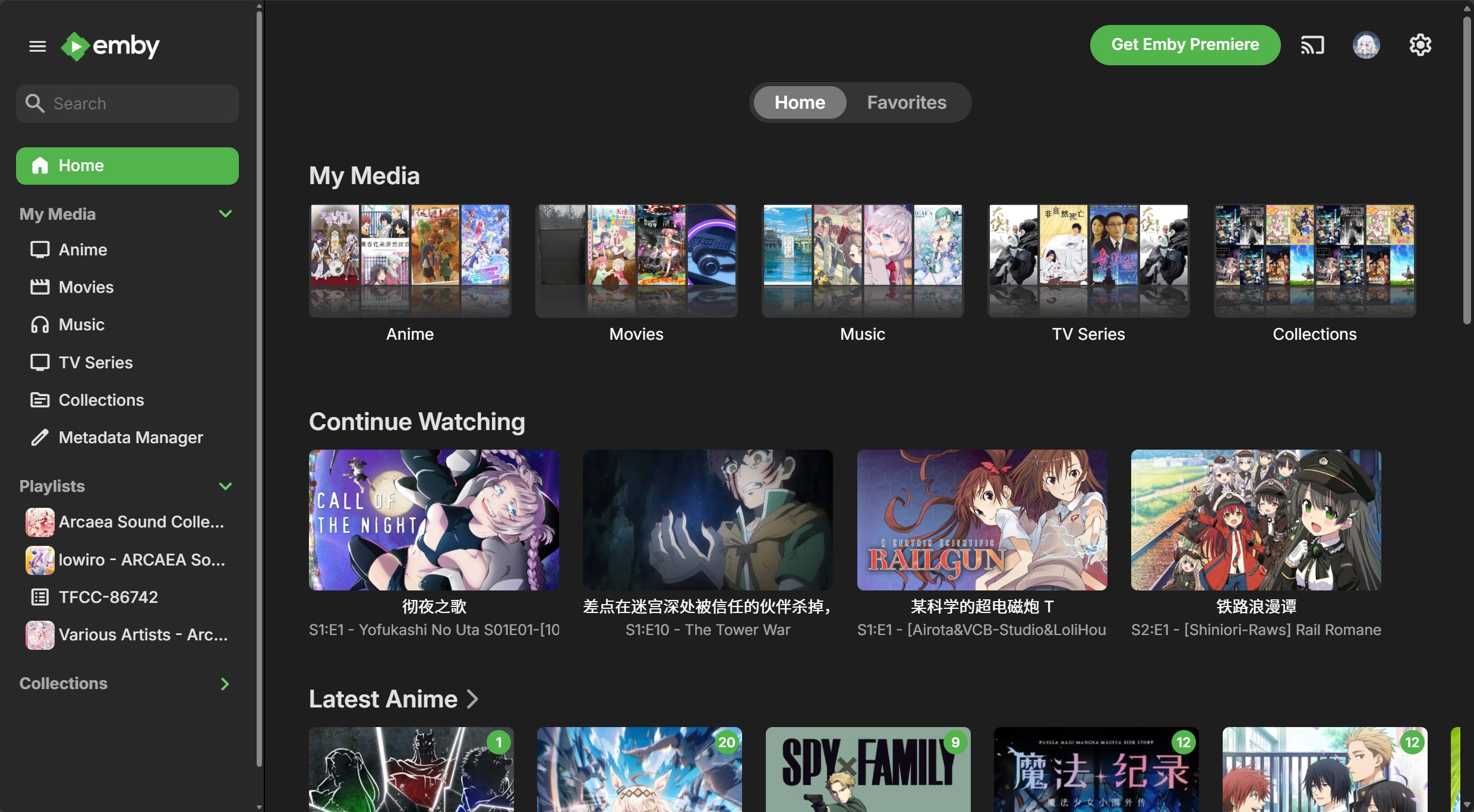
Ultimate Home Media Lab: Automatic Subscription Downloads + Metadata Retrieval
Preface
I believe that after owning your own private NAS or server, you will definitely want to build your own media library. Although major cloud storage services have large capacities, their download speeds are generally limited by network speed, membership-based speed restrictions, and other factors. So, what is the most suitable solution? Of course, it's to build a local media library deployed in your own home! This article will introduce you to home media libraries and guide you through the installation and debugging step by step!
Equipment Requirements
- A computer device with at least one Gigabit or higher Ethernet port
- A high-performance router/switch device (for high-speed internal network transmission)
NAS / Server Performance Requirements
| CPU | Memory | GPU | Hard Drive |
|---|---|---|---|
| J1900 or up | 8GB or up | No Requirement | Depends on personal needs |
Required Projects
- Emby Media Server
- [Data Deleted]
The developer said we shoulden't announce it in China, so it had been deleted here. But if you are a CTFer, maybe you could find something(?)
1. Download Projects
Before starting the deployment, we need to download all the required files
- Visit the official download page of Emby Media Server and download the server version for Windows
- Visit the official download address of [Data Deleted] and download the Windows version
- Visit the official release page of qBittorrent Enhanced Edition and download the Windows version
2. Configure qBittorrent Downloader
- After installing qBittorrent, open the program's settings page, select
WebUI (Web UI)in the sidebar, and set the account password for the web UI in theAuthenticationsection.
- You can also set a whitelist for internal/public IP addresses according to your needs. Note: IP addresses in the whitelist do not require account passwords when logging in to the Web UI. Please carefully consider security.
- You can also change the bound port number here to ensure it doesn't conflict with your other services.
- Switch to the
Behaviorsection in the sidebar, findStart qBittorrent on Windows start upin theDesktopsub-item, check this option, and clickOKto save.
After completing the configuration, please manually access the <Server IP>:<Port> page using a browser to ensure the Web UI starts normally.
Note: qBittorrent usesBT downloadmethod. The download speed of this method depends on how many people areseedingthe resource when you download it. The more seeding machines there are, the faster the download speed. Conversely, the download speed will be slower. Therefore, using this method to download recent anime and other resources will be relatively fast, while downloading old resources will be relatively slow. Additionally, router configuration can also affect torrent discovery and download. The author encourages readers to enable theuPnPfunction on their routers. Please search separately for how to enable it, as this article will not elaborate further.
3. Configure Automatic Anime Subscription
- Extract the downloaded [Data Deleted] to a separate folder and run
[Data Deleted]-launcher.exeto start the program. - Visit
<Server IP>:7789to enter [Data Deleted]'s Web UI.
Default username and password are both admin- After entering the Web UI, click the Settings button in the upper right corner of the page, enter the Web UI address of qBittorrent, input the username and password you just set in qBittorrent, and set the save locations for regular TV anime and movies according to your needs. The figure below is a screenshot of the author's settings
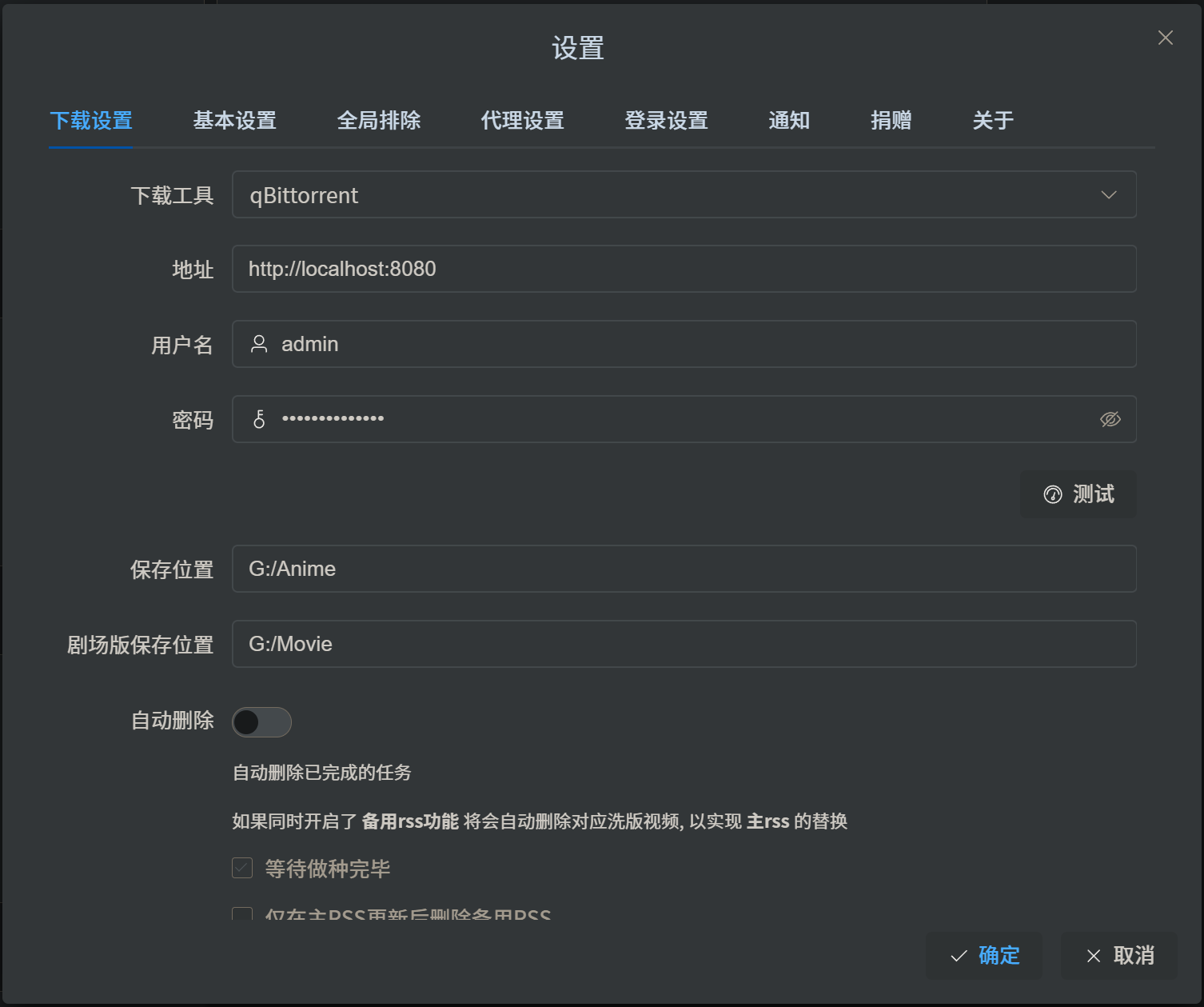
Note: [Data Deleted] requests qBittorrent in a mode that is requested by the program running on the server, which is independent of the environment of the host used to access the Web UI. Therefore, if you are not running qBittorrent and [Data Deleted] on separate machines, you can completely fill inlocalhostor127.0.0.1as the server address.
- After filling in the information, click the
Testbutton to test if the connection to qBittorrent is normal. After the test is successful, you can change options on other pages according to your needs. Here are some recommended options to enable or disable:
- Download Settings -> Detect Dead Torrents:
Enable - Basic Settings -> Add Subscription -> Only Get Anime:
Check - Basic Settings -> Add Subscription -> tvshow.nfo:
Enable - Basic Settings -> Add Subscription -> Auto Upload:
Enable - Basic Settings -> Rename Settings -> Auto Rename:
Enable - Basic Settings -> RSS Settings -> Missed Detection:
Enable - Basic Settings -> RSS Settings -> Auto Skip X.5 Episodes:
Enable
- Download Settings -> Detect Dead Torrents:
You can also enable notification services in the Notification section to get real-time updates on your subscription link status and updates
- Click the
Add->Add Subscriptionbutton in the upper right corner of the page to jump to the anime subscription page. After clicking theMikanbutton, you can select the anime and movie resources you want to subscribe to for the current season. Of course, you can also use the Search function to download previous video resources.
- The anime source for this software is
Mikan Project.
4. Configure Emby Media Server
- Start the downloaded Emby server installer, which will pop up some pages for you to confirm whether to download, just confirm all of them. The installer will automatically download and install the Emby server.
- After the installation is complete, the main program will automatically open the Emby Web UI. Please follow the page instructions to configure your media library and users. After configuration is complete, you can enter the main page.
Note: During the configuration process, you can refer to the following tips to improve the experience and metadata recognition rate:
- Set all options related to country and region to China
- Enable
Prefer embedded titles over filenames- Enable
Enable real time monitoring- Check all data sources and ensure
TheTVDBhas the highest priority in each item- Enable
Save artwork into media folders- Enable
Download images in advance
- After a short wait, you can see your media files on the homepage and other pages.
If you need to further optimize your Emby experience, you can refer to Emby Optimization and Upgrade Guide
This concludes the configuration
Conclusion
- If you find this article useful, please recommend it to people around you who need it, thank you!
- If there are any errors or omissions in the article, please feel free to point them out, thank you!