

Setting Up Virtual Machines with Hyper-V and Configuring Bridged Network
Introduction
When configuring virtual machines, we sometimes need them to be directly accessible by other devices on the internal network, bypassing the host machine's NAT translation, and allowing the virtual machine to have an independent IP address on the internal network. If you're using a Windows Server system, using Hyper-V to set up virtual machines and enabling bridged mode is undoubtedly the solution with the lowest performance loss and highest efficiency. Below, I'll introduce the specific method for configuring bridged network mode in Hyper-V virtual machines.
Note: This tutorial is only applicable to users using Windows Server. If you're using Debian-based PVE or VMware's ESXi, please refer to other articles.
1. Creating a New Virtual Network Adapter
To give the virtual machine an independent IP address on the internal network, we first need to assign a network adapter to the virtual machine system. This adapter can be either a physical network adapter or a virtual network adapter, depending on your specific needs.
Note: The network adapter you choose determines which network segment your virtual machine will be assigned to.
For example: If a server has four network adapters namedNIC 1,NIC 2,NIC 3, andNIC 4, andNIC 1has an IP of192.168.1.2, and we want the virtual machine to also be assigned an IP address in the192.168.1.xrange, then we need to useNIC 1as our bridged network adapter.
- Open the Hyper-V management console and find
Virtual Switch Managerin the upper right corner.
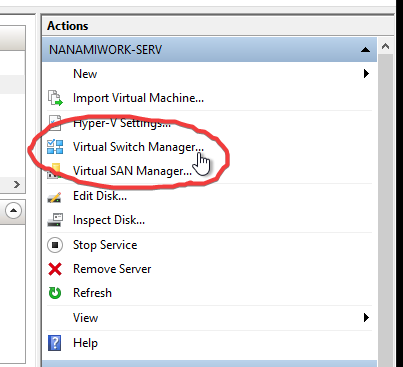
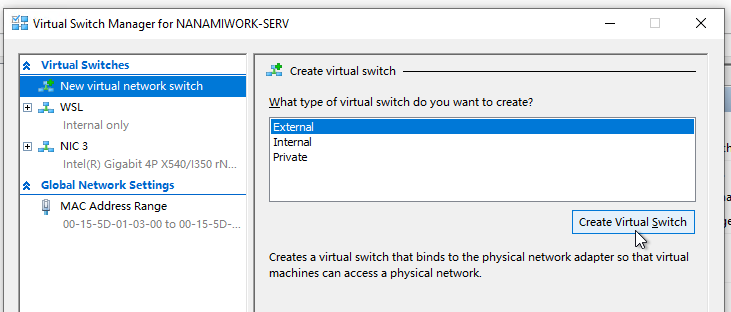
- Select
Externalhere and clickCreate Virtual Switch.
- On the next page, we need to set the name of this bridged network and the network adapter it will use.
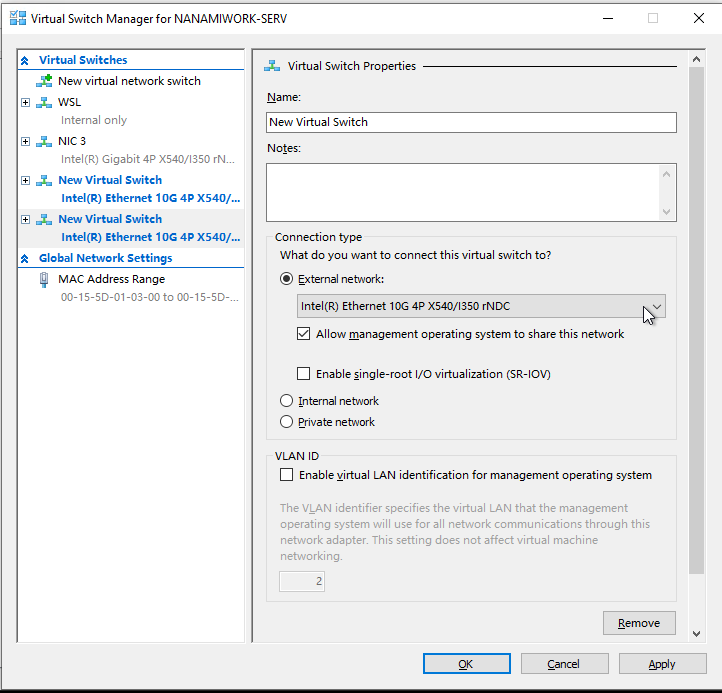
Note: If your virtual machine and host machine are using the same network adapter, be sure to check the box forAllow management operating system to share this network, otherwise the host machine will lose network access!!
If you want your virtual machine to exclusively use a network adapter, then you don't need to check this box. Remember: This requires your host system to have at least one other usable network adapter!
- After entering the name and selecting the network adapter you want to bridge, click
OKto complete the bridged network configuration.
Note: During confirmation, the selected network adapter will be unavailable for a short period (about 5 seconds). Make sure to configure this during a business downtime to avoid affecting normal operations.
At this point, we've completed the creation of the virtual network adapter.
2. Configuring Virtual Machine Network
After setting up the virtual network adapter, we need to configure the network specifically for our virtual machine.
- Select the virtual machine we need to configure and click the
Settingsbutton.
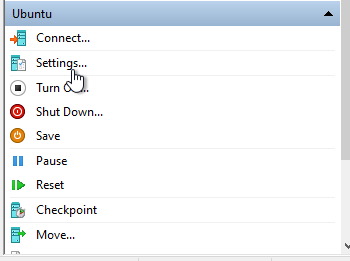
- Navigate to the
Network Adapterpage and select the virtual switch we just created.
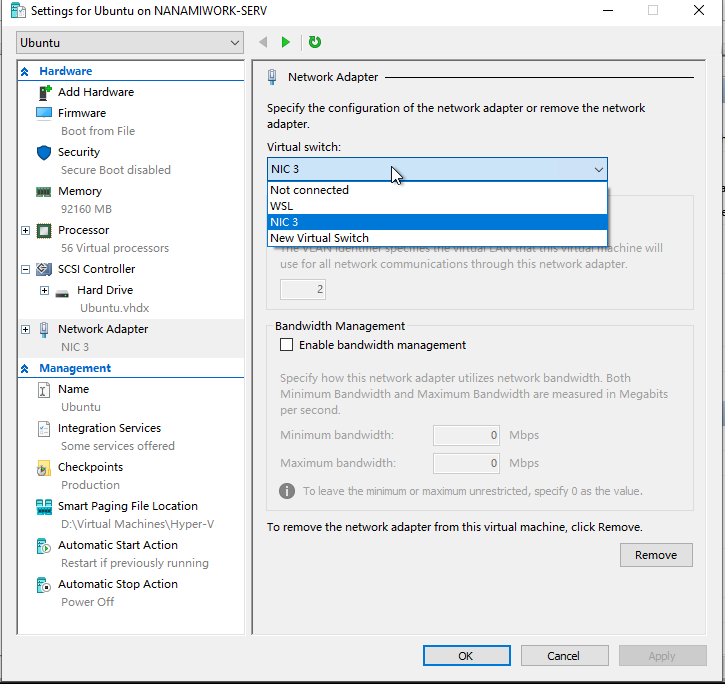
Tip: The Bandwidth Management option below can also help you limit the maximum network usage of your virtual machine.- After making your selection, click
OKand return to the main page. - Click
Connectto connect to the virtual machine and navigate to the virtual machine's network settings.
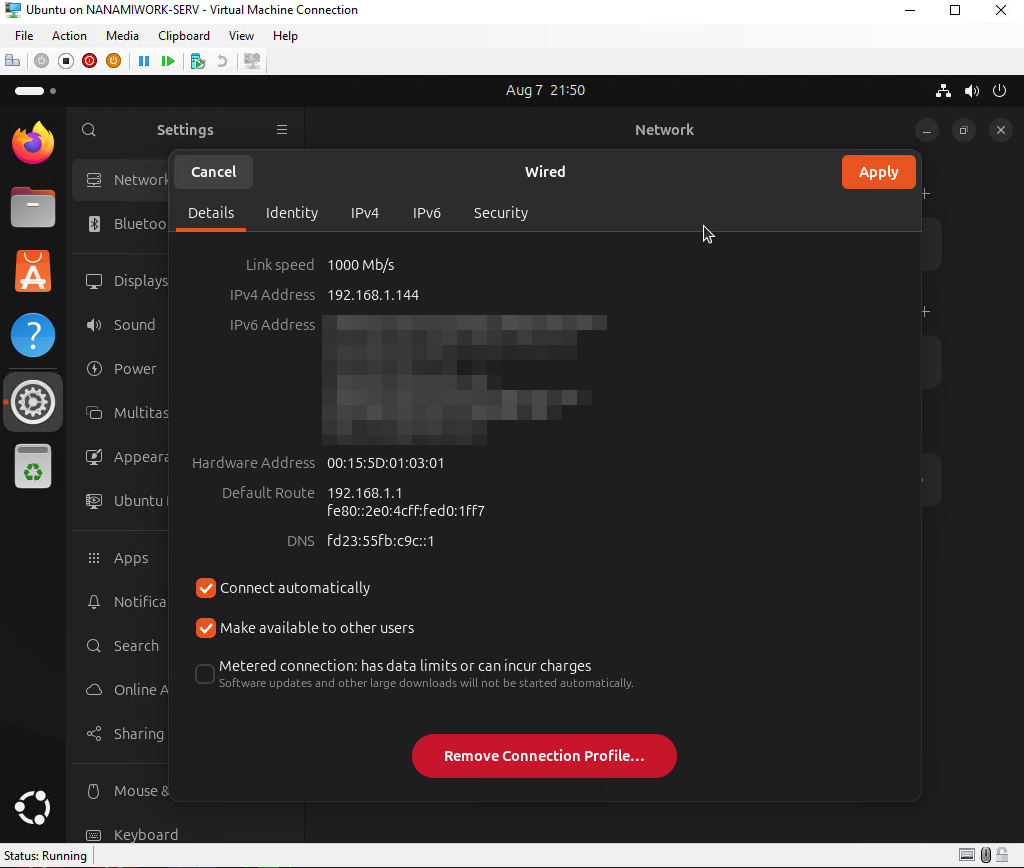
You can see that our virtual machine has correctly obtained an internal network address and is connected to the internet. At the same time, we can also see the virtual machine's connection status in the router's backend page. 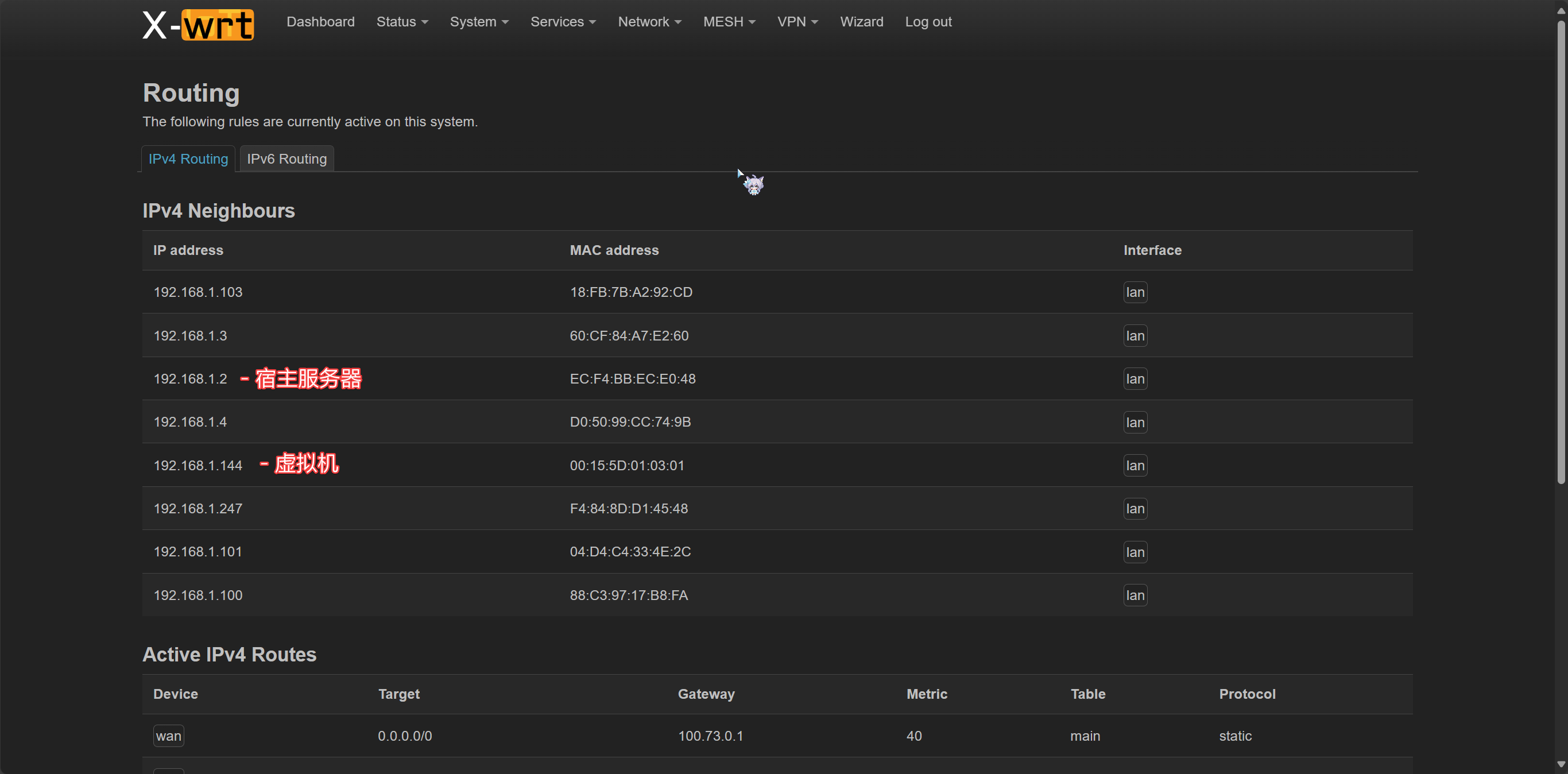
Now, the virtual machine bridge configuration is complete. We can configure a static IP address in the virtual machine to achieve more stable and controllable internal network communication. But please remember: Be careful about IP address conflicts!
Thank you for reading! If you have any questions or suggestions, please feel free to contact us!