There are 4962 words in total,Reading takes about 20 minutes
Preface
The author recently switched their server from Windows Server 2025 to a combination of Debian 13 + Proxmox VE. When using Windows previously, although data was categorized, Hyper-V virtual machines and other data files were still on the same disk. After switching to Proxmox VE, there was a need for multiple virtual machines to share disk access. However, there are many file sharing protocols with varying levels of configuration complexity. This article will introduce the VirtIO-FS protocol and guide you through its configuration.
Why Choose VirtIO-FS
High Performance: Bypasses the traditional network protocol stack, uses shared memory for communication between host and virtual machines, and directly utilizes the VM's vCPU to handle file operations, achieving performance nearly identical to native disk performance.
High Compatibility: Supports Linux kernel 5.4+ and Windows, while providing high support for POSIX protocols (such as symbolic links, hard links, permissions, locks, etc.). (Note: Some AIs seem to question the level of POSIX support)
High Synchronization: Changes made to files by one party are immediately visible to the other
Simple Configuration: User-friendly with straightforward setup
Perfect Ecosystem: VirtIO-FS shares can be directly configured in the Proxmox VE Web UI, offering convenient operation and unified management
Example Environment
OS: Debian 13
Proxmox VE: Proxmox VE 9.1.2 x86_64
Disclaimer
Please ensure data security before proceeding. The author and this article are not responsible for any data loss incurred during operations.
Here, sd<letter> represents an entire disk. For example, sda is a complete disk. sd<letter><number> represents a partition on the disk, so sda1 is partition 1 on the sda disk.
Create a mount point in the mount directory and mount the disk
sudo mkdir /mnt/<diskName>
sudo mount /dev/<partition> /mnt/<diskName>
<diskName>: Partition name, can be filled in arbitrarily <partition>: Partition identifier, such as sda1
Note: A mount point can only mount a single partition, not an entire disk.
After confirming the partition, modify fstab to ensure the partition mounts automatically at boot
Shut down the virtual machine you're about to operate on, save your changes, and run the following commands to apply the changes
sudo systemctl daemon-reload
sudo mount -a
If there are no errors, the disk mounting was successful
Note: If your partition uses the NTFS filesystem and was in passthrough mode before shutting down the VM, you may encounter mounting issues as shown in Figure 1-1 Figure 1-1 If you encounter this issue, you can fix it using the following command:
sudo ntfsfix -d /dev/<partition>
2. Adding VirtIO-FS Nodes
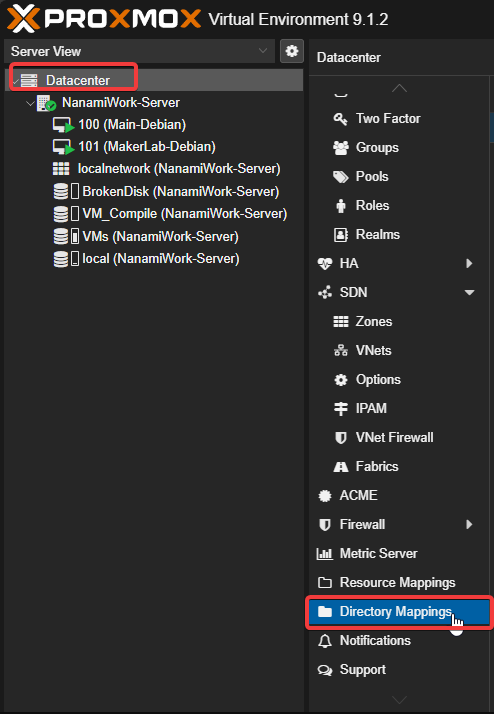
Log in to the Proxmox VE Web UI, navigate to datacenter, find Directory Mappings, as shown in Figure 2-1 Figure 2-1
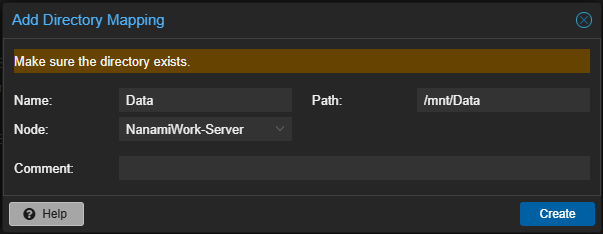
Click Add, fill in the parameters as needed, and add the VirtIO-FS node. You can refer to the author's configuration as shown in Figure 2-2 Figure 2-2
After filling in the information, click Create to complete the creation of the VirtIO-FS node
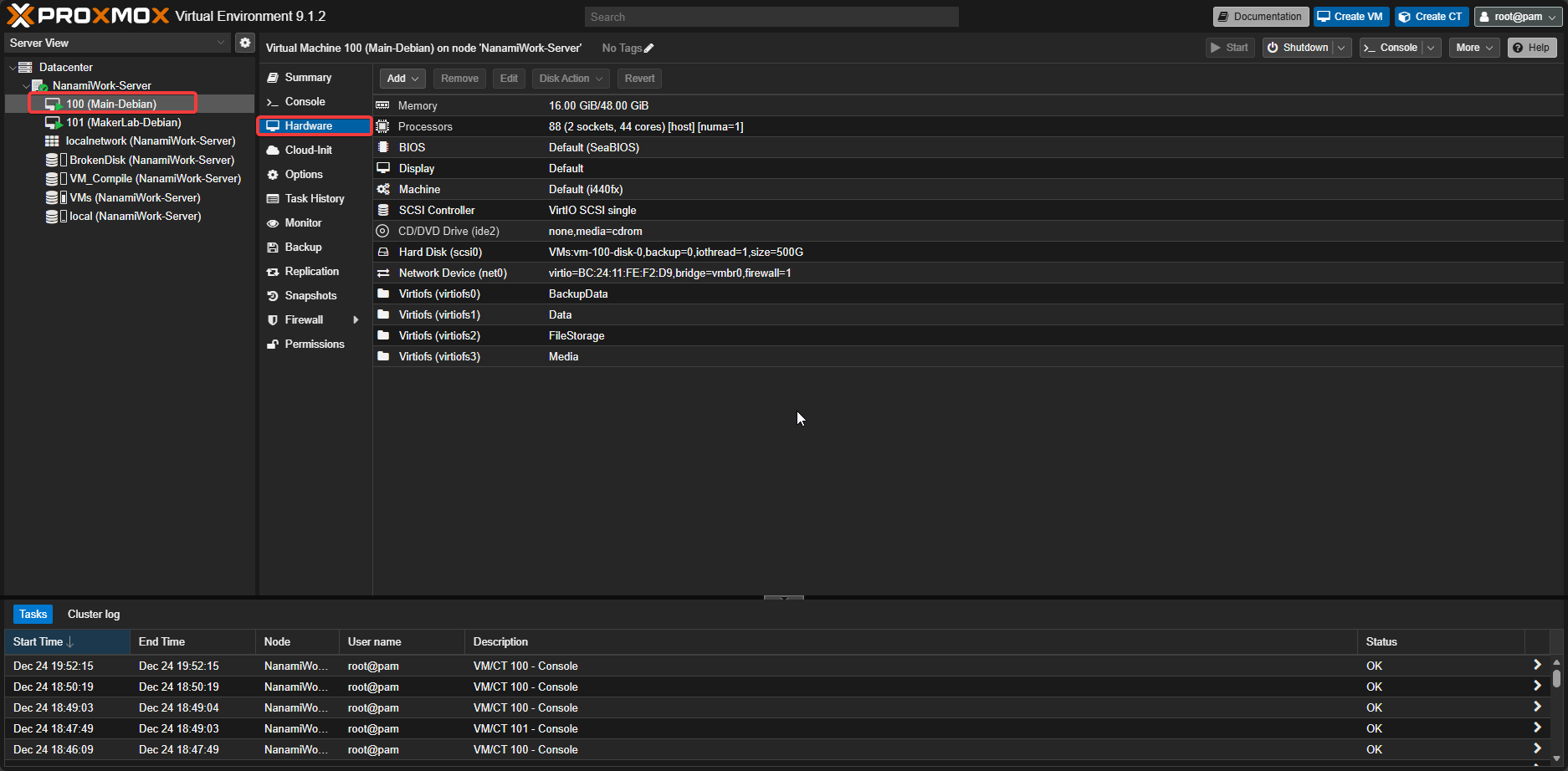
Navigate to the hardware page of the virtual machine you want to operate on, as shown in Figure 2-3 Figure 2-3
Click Add --> Virtiofs to add the desired VirtIO-FS node
Note: Generally, there's no need to modify parameters. Before changing parameters, make sure you understand what you're doing and the consequences.
3. Modifying VM Mount Points
Start the virtual machine and use the following command to open fstab
Do not include uid or gid in the mount parameters, as VirtIO-FS does not accept user and group parameters by default, which would cause mount failures.
VirtIO permissions completely follow the host. If you want to ensure the virtual machine has sufficient permissions to access files on the disk, modify the user's uid and gid to match those of the user used to mount the disk on the host.