

Ultimate Emby Beautification & Optimization: Make Your Self-Hosted Media Library Stand Out
Preface
After setting up the Emby media library, the default Web UI may feel a bit too plain. It also has a major drawback: it cannot open media with external players. In addition, UI customization requires extra work, and of course, we can also add extra features to the Emby Web UI, such as bullet comments (danmaku). This article will teach you how to implement all of these features.
Tutorial Goals
- Beautify the Emby Web homepage
- Add external player jump controls to the Emby Web UI
- Add danmaku functionality to the player page in the Emby Web UI
Open‑Source Projects Used
- This tutorial is written based on a
Windowsenvironment, but applies to bothWindowsandLinux
1. Locate dashboard-ui
- Open your Emby frontend in a web browser, find the settings icon in the upper right corner, and enter system settings.
- In the
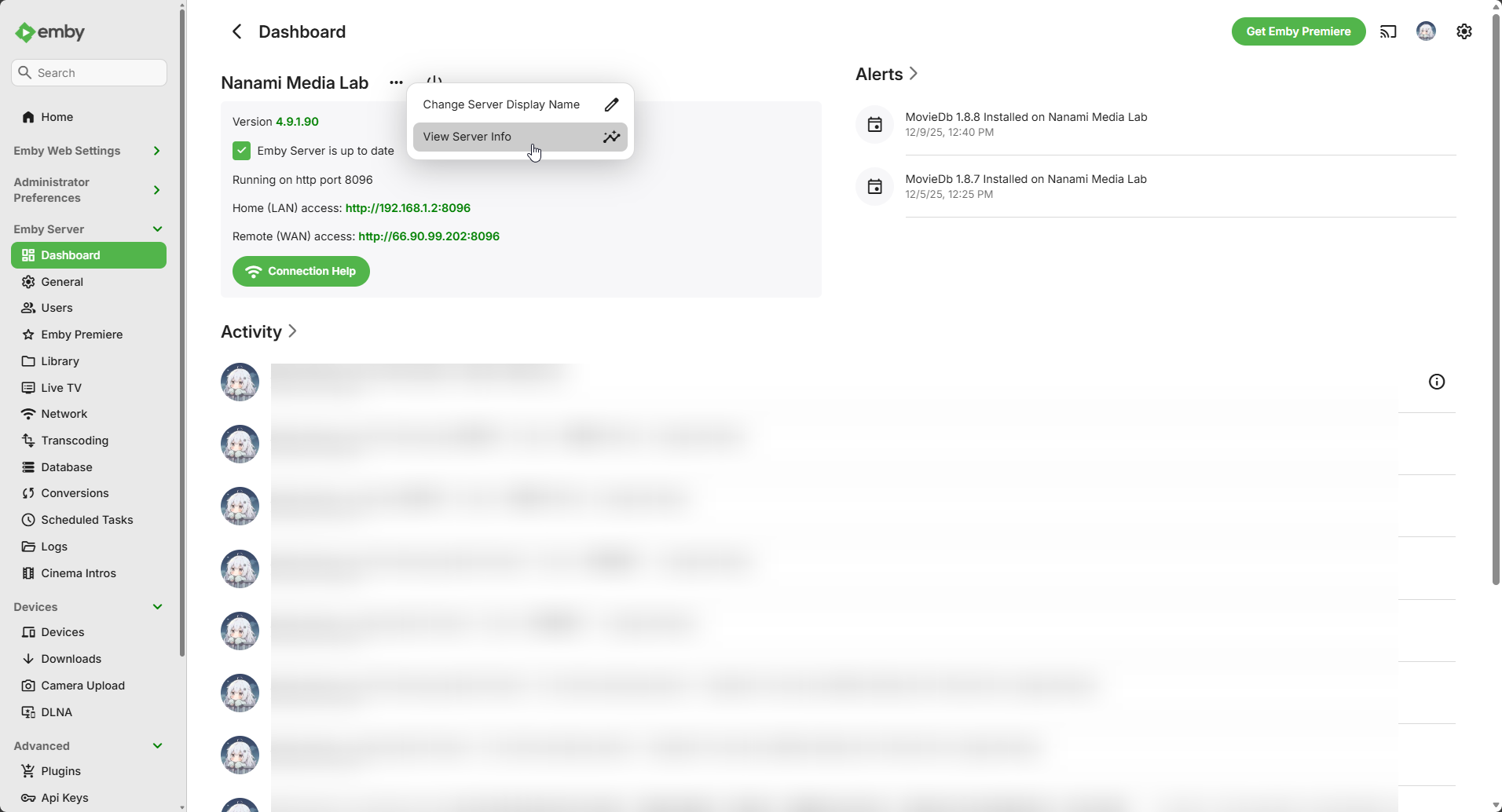
Dashboardsection, find the···icon, expand it, and clickView Server Info. See Figure 1‑1
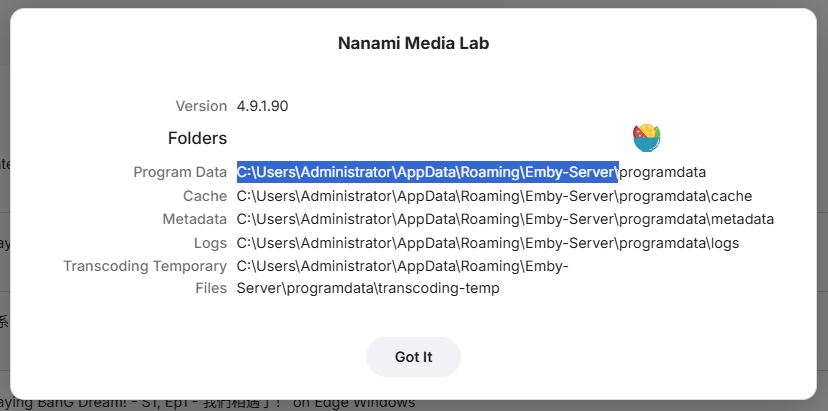
- Here, Emby will show where different data directories are stored on your server. We need to locate the root directory of the Emby Server and open it on the server See Figure 1‑2.
- After opening the folder, navigate to
system/dashboard-ui
2. Install Plugins
Download the source code for the three projects mentioned above.
2.1 Install embyExternalUrl
- Extract the
embyWebAddExternalUrlfolder from the source code into the root ofdashboard-ui, and rename it toembyExternalUrl. - Open the
index.htmlfile in thedashboard-uidirectory and add the following code before<head>. The final result is shown in Figure 2‑1‑1
    <link rel="stylesheet" id="theme-css" href="embyExternalUrl/icons/ExternalPlayer.css" type="text/css" media="all" />
    <script src="embyExternalUrl/embyLaunchPotplayer.js"></script>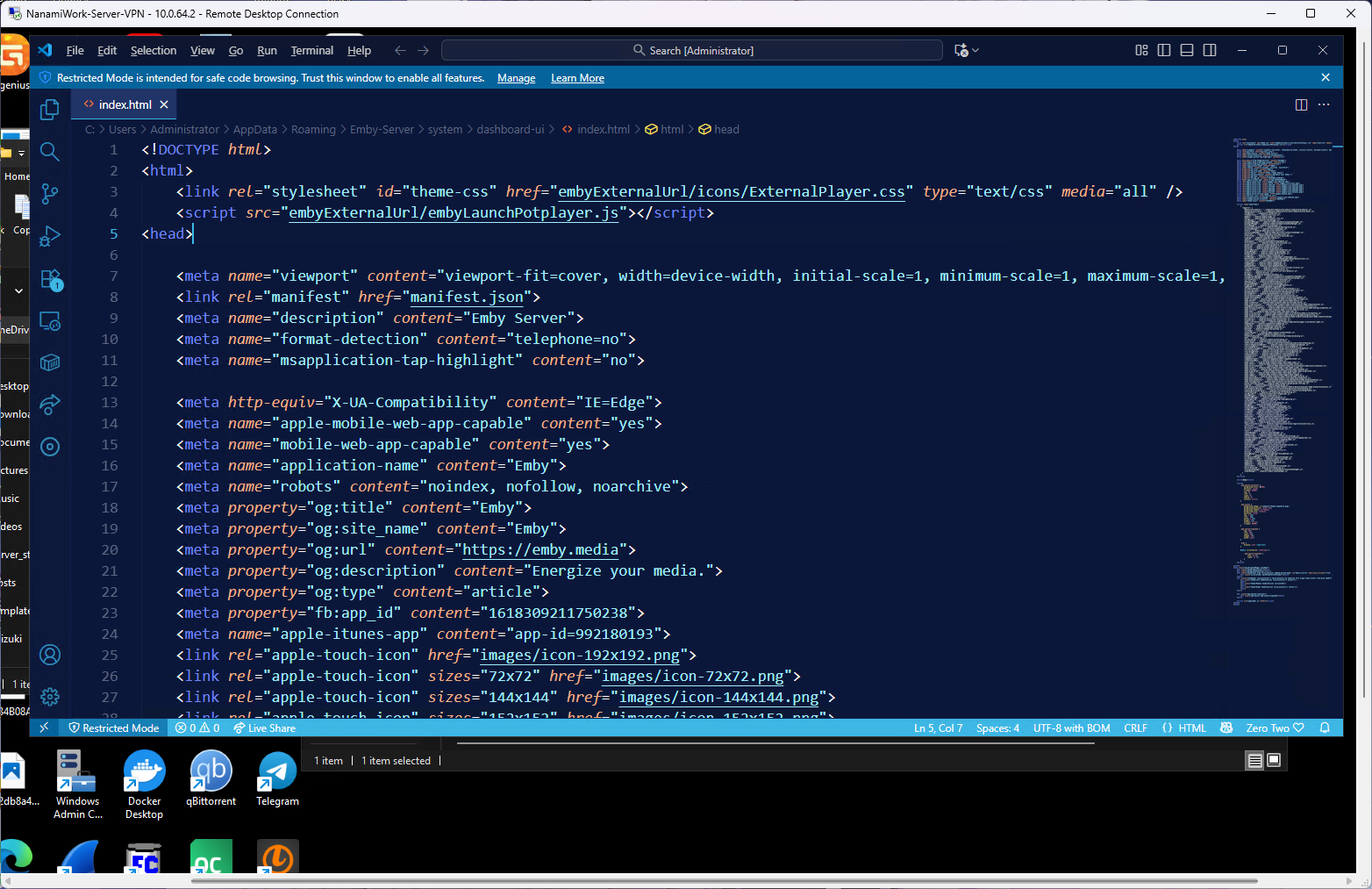
Save and launch the Emby Web UI. Open any media page and you should see the button shown in Figure 2‑1‑2
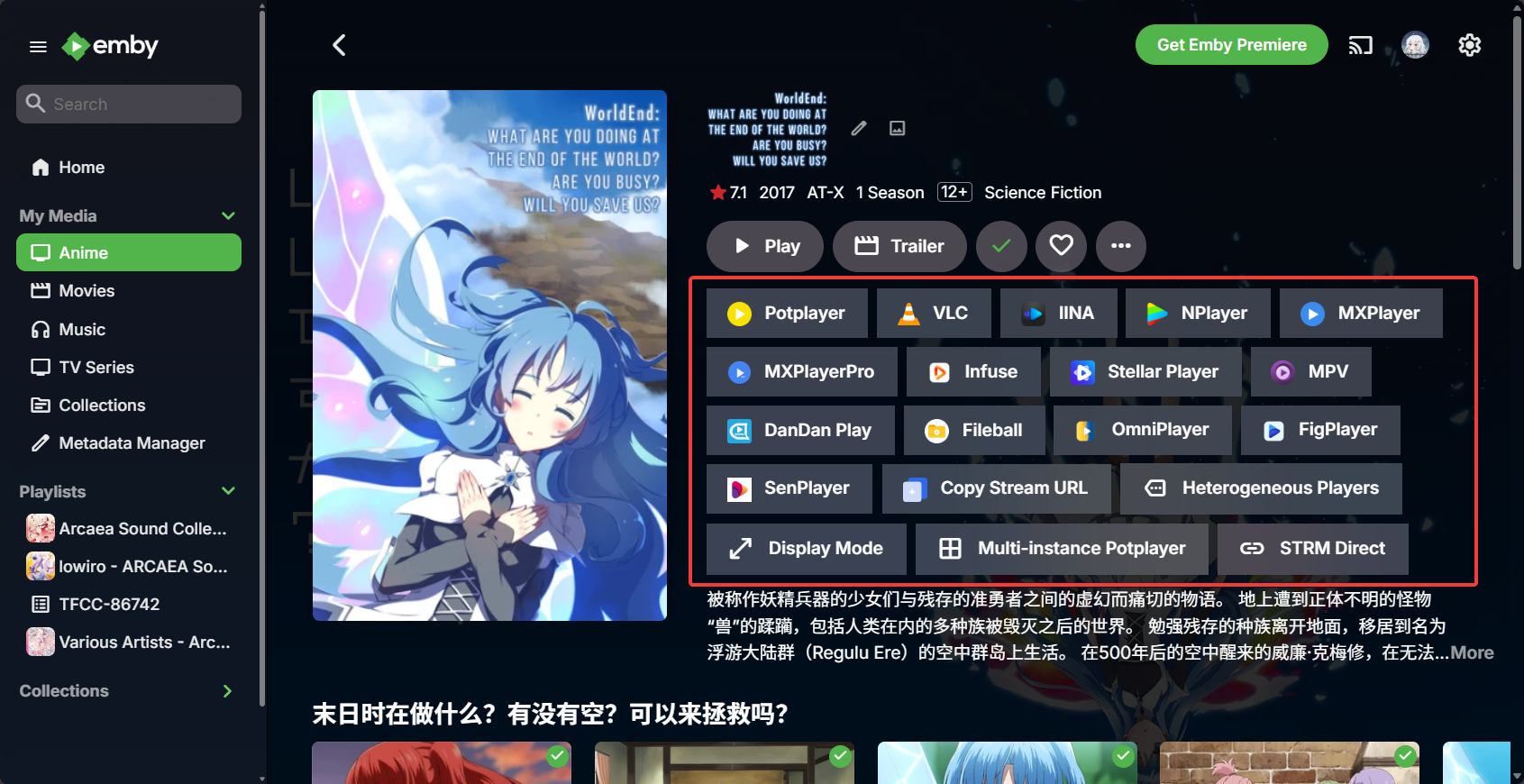
Figure 2-1-2 2.2 Install
Emby Crx- Open the source folder and locate the following files in the subdirectory:
common-utils.js jquery-3.6.0.min.js md5.min.js style.css main.js- Create a directory named
emby-crxinsidedashboard-uiand extract these files into it. - Open
index.htmlindashboard-uiand add the following code before</head>. The final result is shown in Figure 2‑2‑1
  <link rel='stylesheet' id='theme-css'  href='emby-crx/style.css' type='text/css' media='all' />
  <script src="emby-crx/common-utils.js"></script>
  <script src="emby-crx/jquery-3.6.0.min.js"></script>
  <script src="emby-crx/md5.min.js"></script>
  <script src="emby-crx/main.js"></script>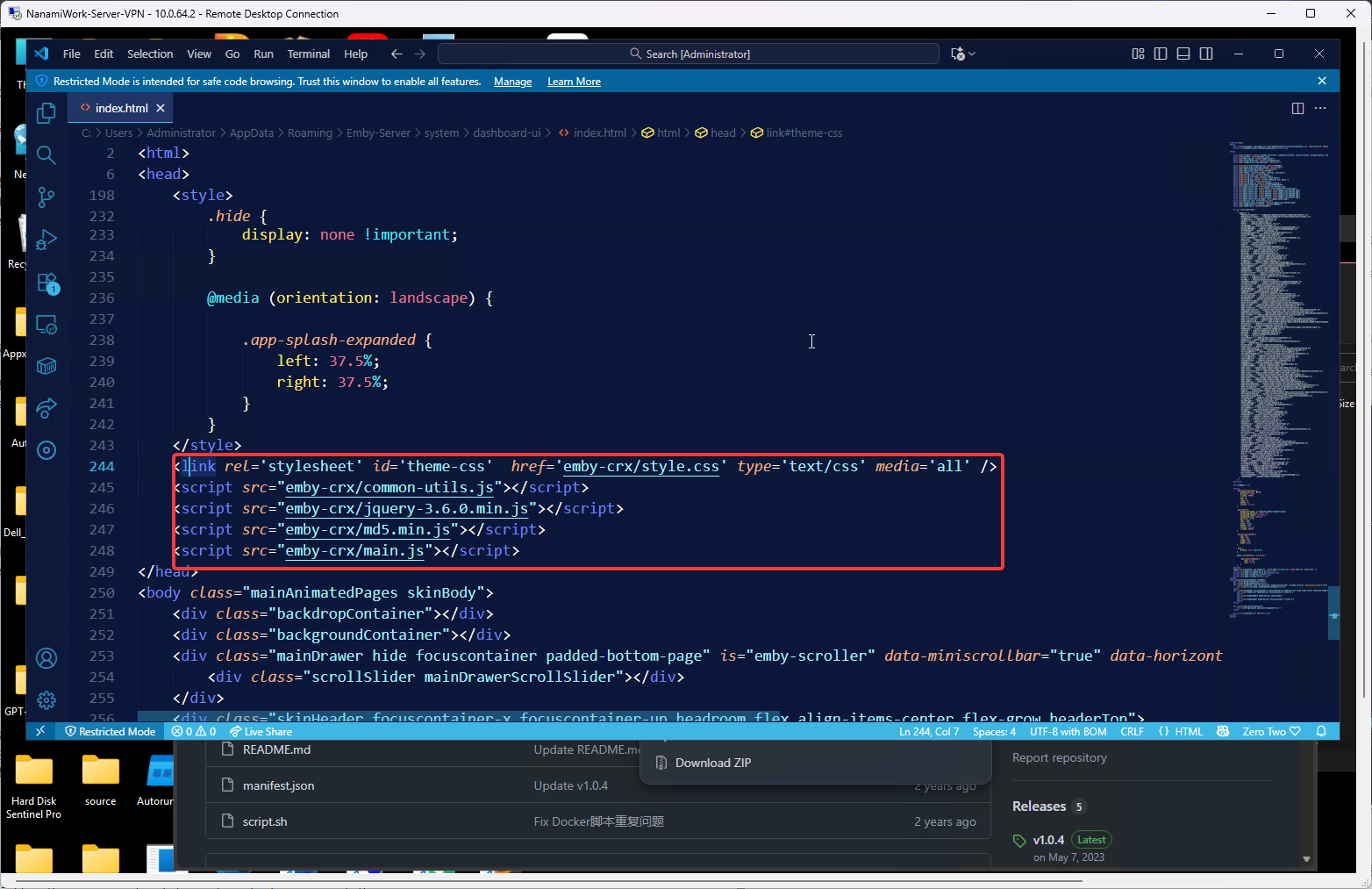
Figure 2-2-1 Save and restart the Emby Web UI. You should now see full-screen posters on the homepage.
Note: If you encounter an infinite loading spinner after adding this
plugin, it is not your fault --- the plugin has known issues. You can
remove it if needed.2.3 Install
emby-danmaku- Create a directory named
emby-danmakuinsidedashboard-uiand extract theede.jsandcf_worker.jsfiles into it. - Open
index.htmlunderdashboard-uiand add the following code before</body>. The final result is shown in Figure 2‑3‑1
<script src="emby-danmaku/ede.js" defer></script>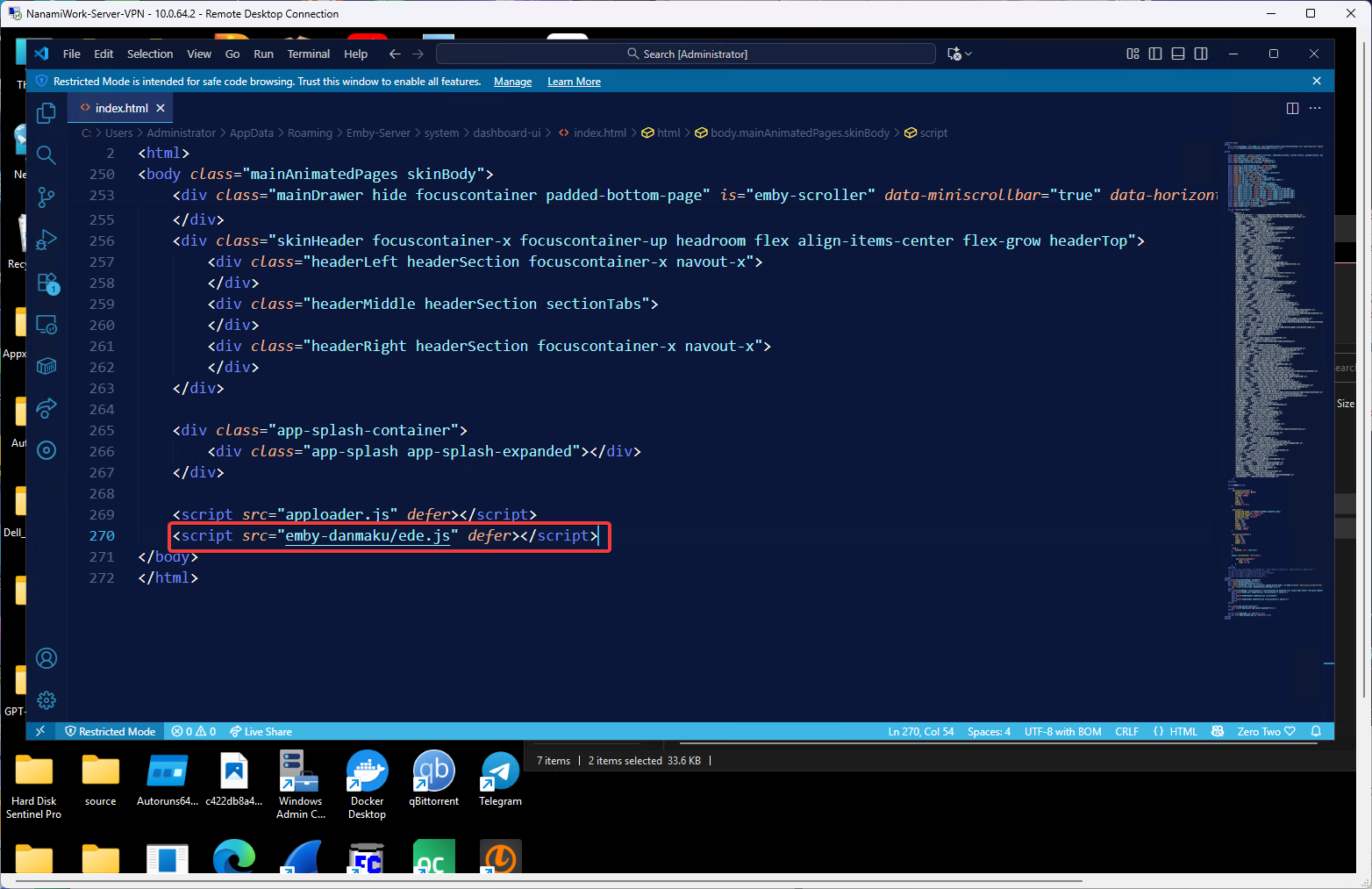
Figure 2-3-1 - Create a directory named
After opening Emby, play any media file and you will see danmaku displayed. See Figure 2‑3‑2
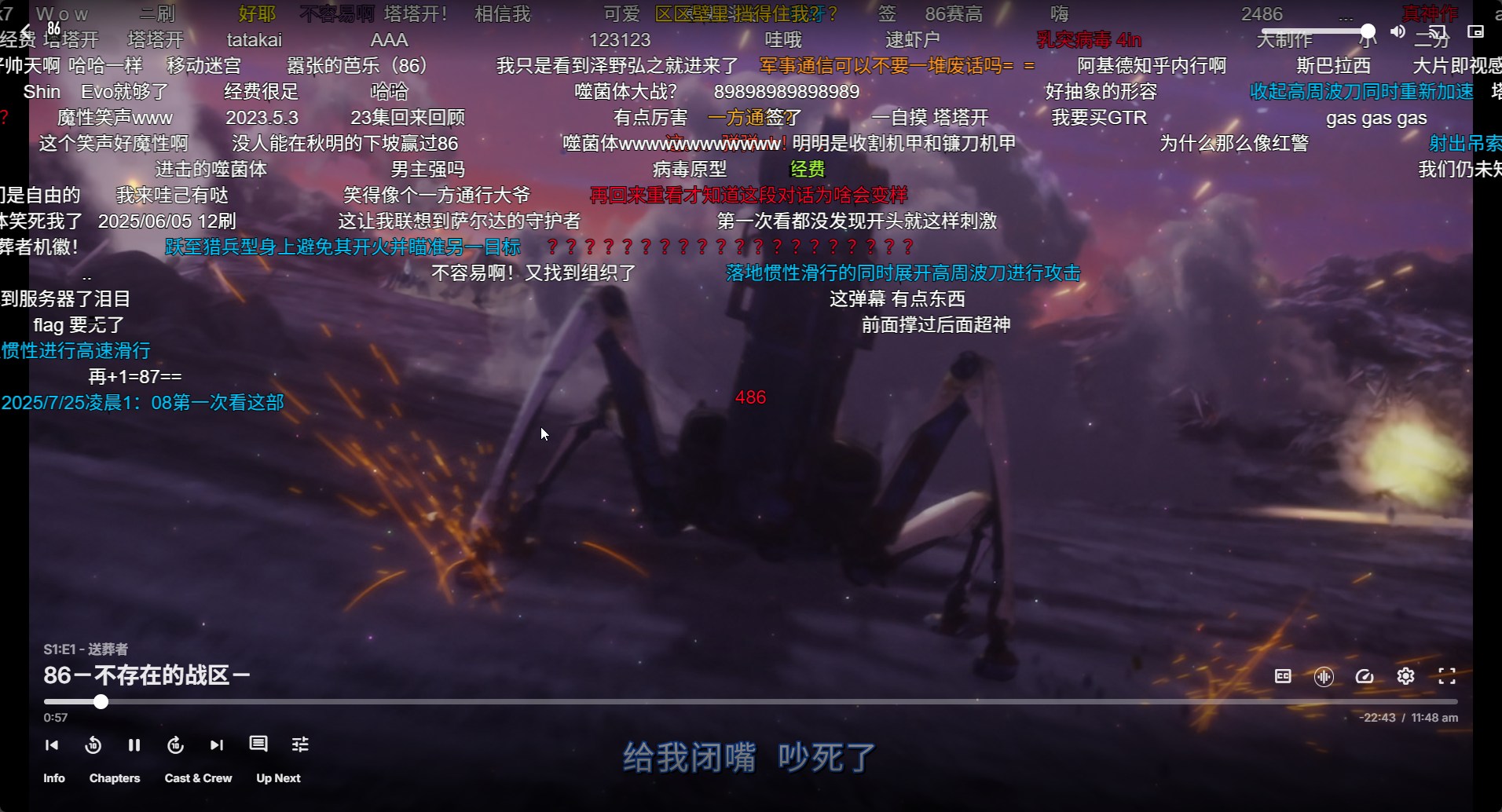
Figure 2-3-2 Click the settings icon in the lower-left corner to configure danmaku options, platforms, API keys, and more.
Ending
Thank you for reading. If you found this helpful, please leave a comment and share it with others who may need it. Thank you!