

Windows Downgrade Perfect Solution: Keep your data and downgrade by the official installer
Preface
If we upgrade our Windows computer to a new stable or preview version and the 30-day rollback period has passed, using the official tool to downgrade is no longer possible. But with a slight modification to the official tool, you can downgrade while keeping your data. This article explains the exact procedure.
Principle
The compatibility check module of the Windows installer calls a dynamic library named setupcompat.dll to perform checks. This library contains all items the installer needs to verify. When the installer calls this module, it determines whether requirements are met by reading the return value. If not met, it shows an error; if met, it continues installation.
What we need to do is change the return value of the check for whether the system version is higher than the current version to always return 1, so the installer always believes the system version meets the requirement under any condition.
Notes
- If you are downgrading from Windows 11 Dev to the Windows 11 stable version, it is recommended to downgrade gradually from the closest Dev build. Downgrading in one step may fail.
- If you are downgrading from Windows 11 to Windows 10, remember to back up Windows App data.
- Regardless of the version you downgrade from, back up all data on the system drive and create a restore point before starting!
Warning
- This method only guarantees passing the installer’s checks. It does not guarantee successful installation or system stability. Any consequences caused by using this method are unrelated to the author!
- Downgrading using this method may lead to system crashes, driver failures, or software malfunction. If not necessary, consider downgrading by clean installation instead.
Tools Used
- IDA Pro
- Original Windows ISO image
Main Section
1. Download the Image
- Go to the UUP Dump website and select the version you want to download.
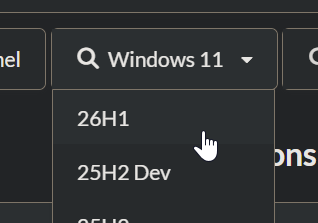
UUP Dump - Choose your desired version and language.
- For the download option, select
Download and convert to ISO, then clickCreate download package.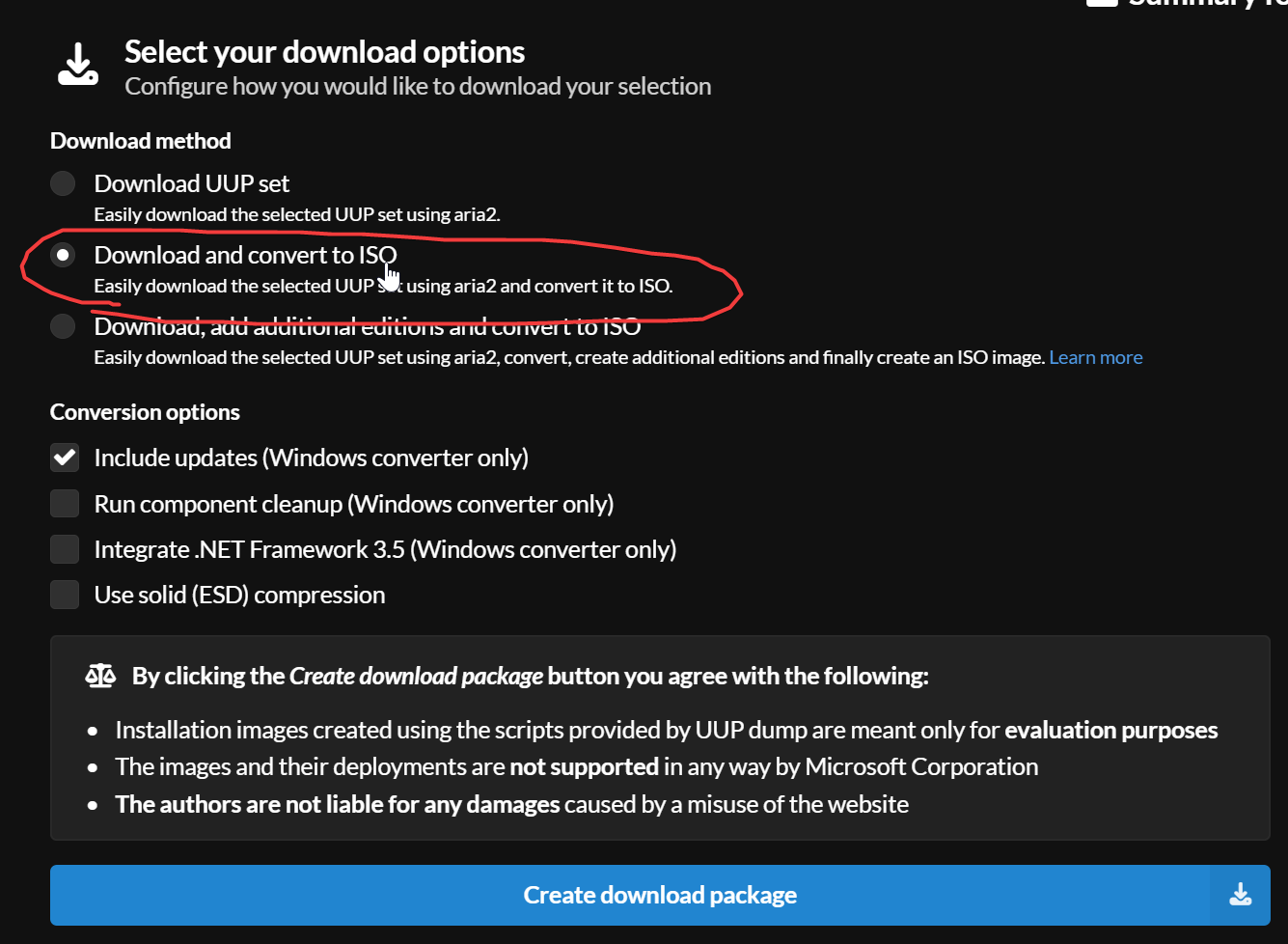
Create download package - A compressed package containing scripts will be downloaded. Extract it to a separate folder, then run
uup_download_windows.cmd.
The script will automatically download all required components and convert them into an installable.isofile. Just wait patiently. If download errors occur, simply run the script several times. Except for downloadingaria2c, this step does not require a VPN/proxy.
2. Patch the File
- Extract the generated
.isofile completely to a separate folder, then find/sources/setupcompat.dlland move it to your desktop or another location. - Make a backup named
setupcompat.dll.bak, then openIDA Proand clickGoto start.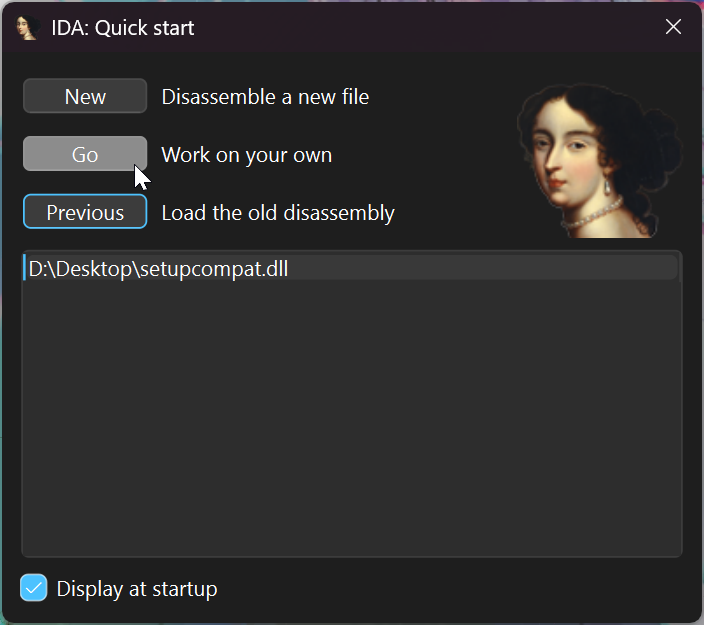
IDA Pro Drag
setupcompat.dllinto IDA Pro. When a dialog appears, do not change any settings; clickOKto enter the disassembly view.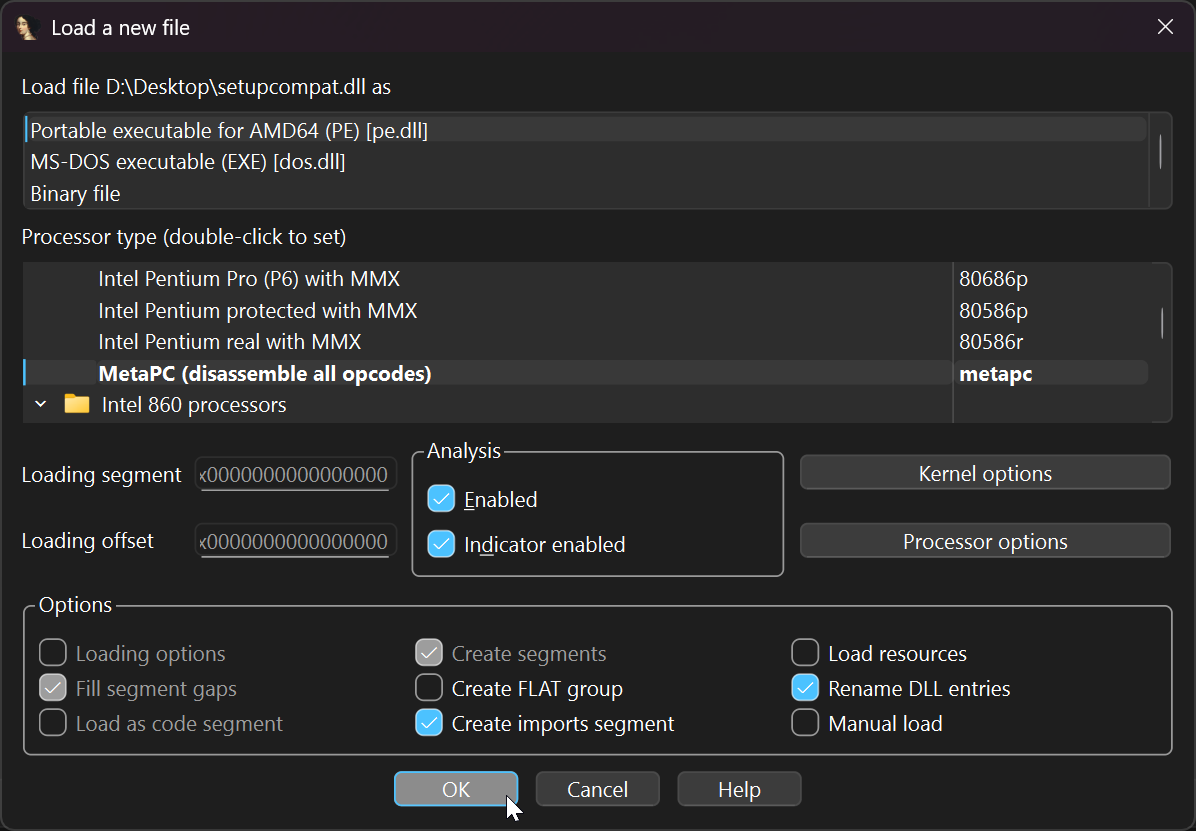
IDA Pro A dialog will ask whether to download the required PDB file from Microsoft servers. Click
Yes.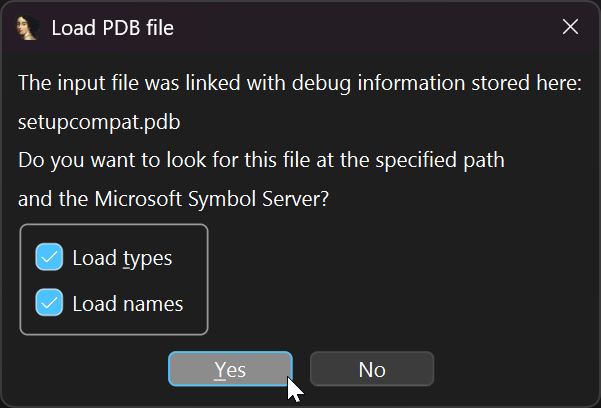
IDA Pro - In the assembly view, locate the
Functionssidebar on the left. Click any item, then pressCtrl + Fto search. - Search for the function
IsLaterThanand double-click the only search result.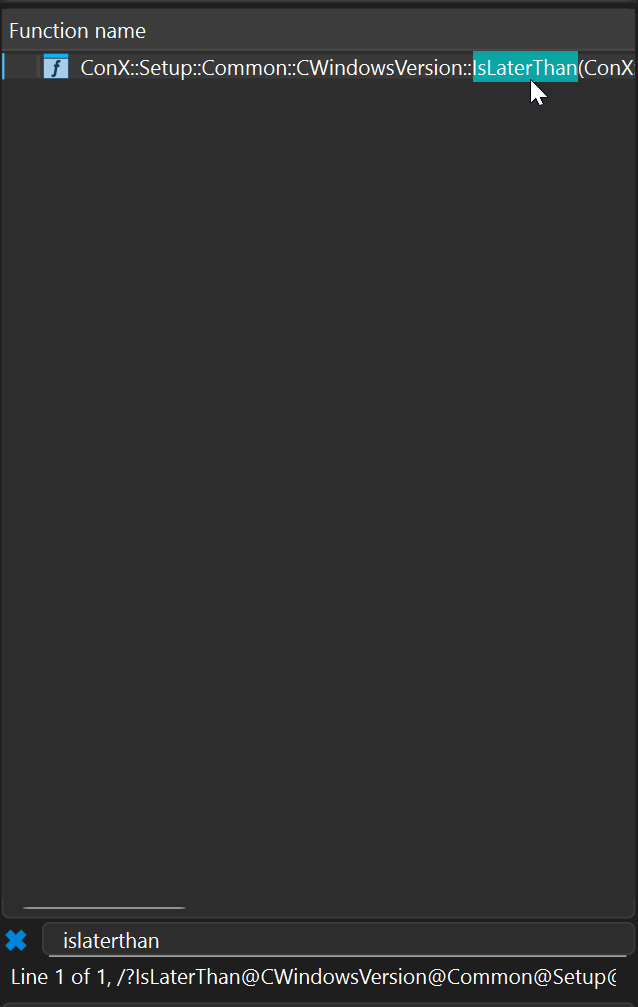
IsLaterThan - In the graph view on the right, scroll to the bottom and find the instruction shown in the image.
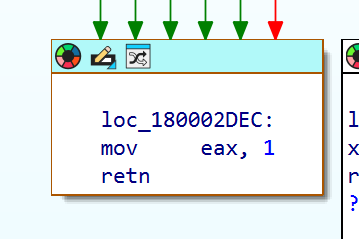
Function - Right-click on the instruction
mov eax, 1and selectText view. - In Text view, place your cursor before the value
1(as shown) and right-click →Manual. Change the value to0.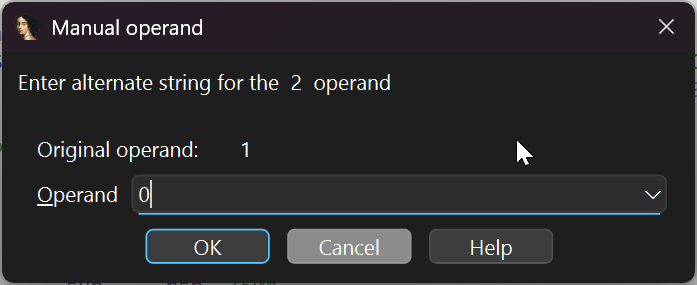
Change value - Click
OKto save. - Then go to
Edit→Patch program→Assemble..., clickOKto apply, then close the window.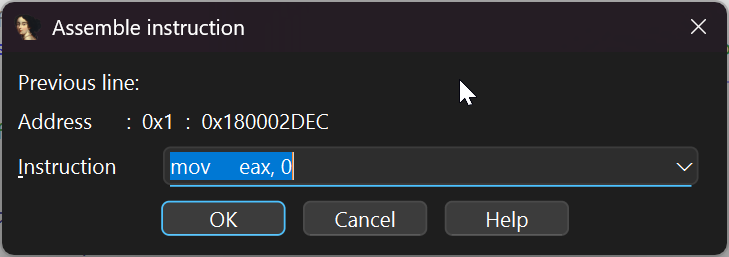
Assemble... - Next, go to
Edit→Patch program→Apply patches to input file, and clickOK.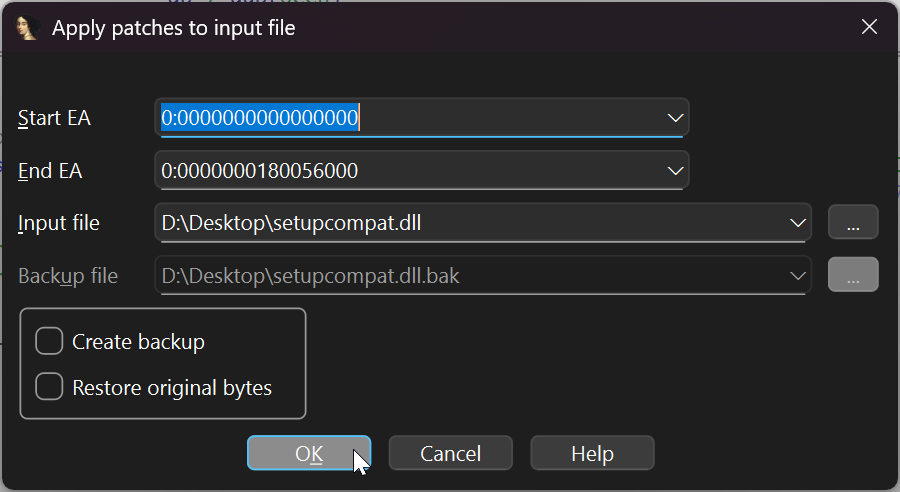
Apply patches to input file - If the lower-left corner shows
Applied 1/1 patch(es), the modification was successful.
3. Apply the Patch
- Replace the original
setupcompat.dllfile with your patched version. After replacing, runsetup.exeagain to start installation. - If everything was done correctly, the installer will no longer report a high-version error. The tutorial ends here.
Conclusion
- After a successful rollback, handle follow-up tasks yourself, such as restoring data and reinstalling software. Also keep an eye on system stability.
- I am not a professional reverse engineer. If anything is incorrect, please point it out—thank you!
- If this article helps you, please recommend it to anyone who might need it—thanks!