

University Student Basic Tutorial: Setting Up a C Language Compilation Environment in VS Code
Preface
As a university freshman, my major requires learning C language programming. However, the vast majority of my classmates have had no prior exposure to programming. Therefore, I have written this tutorial for university students just starting with programming, as well as individuals from all walks of life, to learn how to set up a C/C++ runtime environment.
Requirements
- A computer running
Windows 10/11or aLinuxdistribution likeUbuntuorDebian A brain
Note: This article may require a network environment capable of accessing certain external resources.
Why Choose Visual Studio Code
- Lightweight, small footprint
- Rich plugin support, extensive runtime environments
- Simple configuration, easy to learn, very suitable for beginners
- Powerful functionality, highly extensible
- Built-in AI tools, convenient for code review and optimization
- Built-in
GitGUI tools, making code commits and modifications extremely easy - Strong community support
- ...
The Official Tutorial
1. Download and Install VS Code
- Visit the Microsoft Visual Studio Code official download page and download the distribution for your system.
Note: Almost all Windows users will need the User Installer - x64 version.- Once downloaded, open the installer and click 'Next' through the steps. When you reach a page similar to Figure 1-1, check all the options.
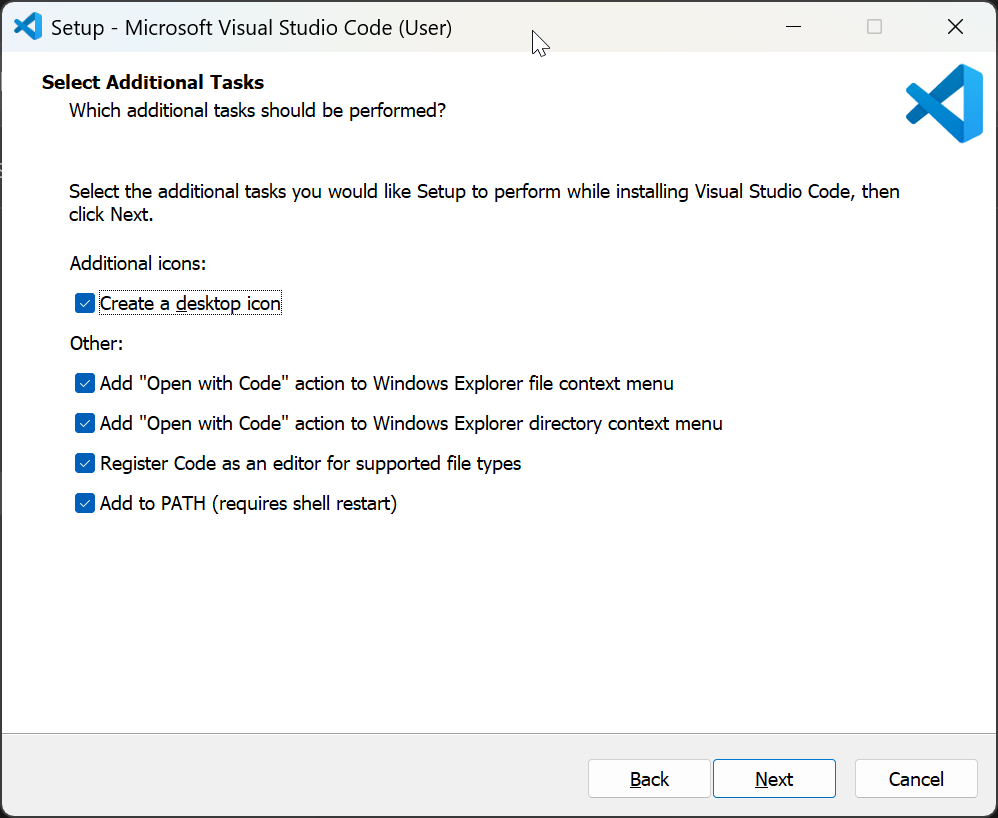
Figure 1-1 - Click
Installand wait for the installation to complete. - After installation, uncheck
Launch Visual Studio Codeand click Finish.
2. Download the MinGW Compiler
- Visit the MSYS2 Github releases page and download the latest release. (See Figure 2-1)
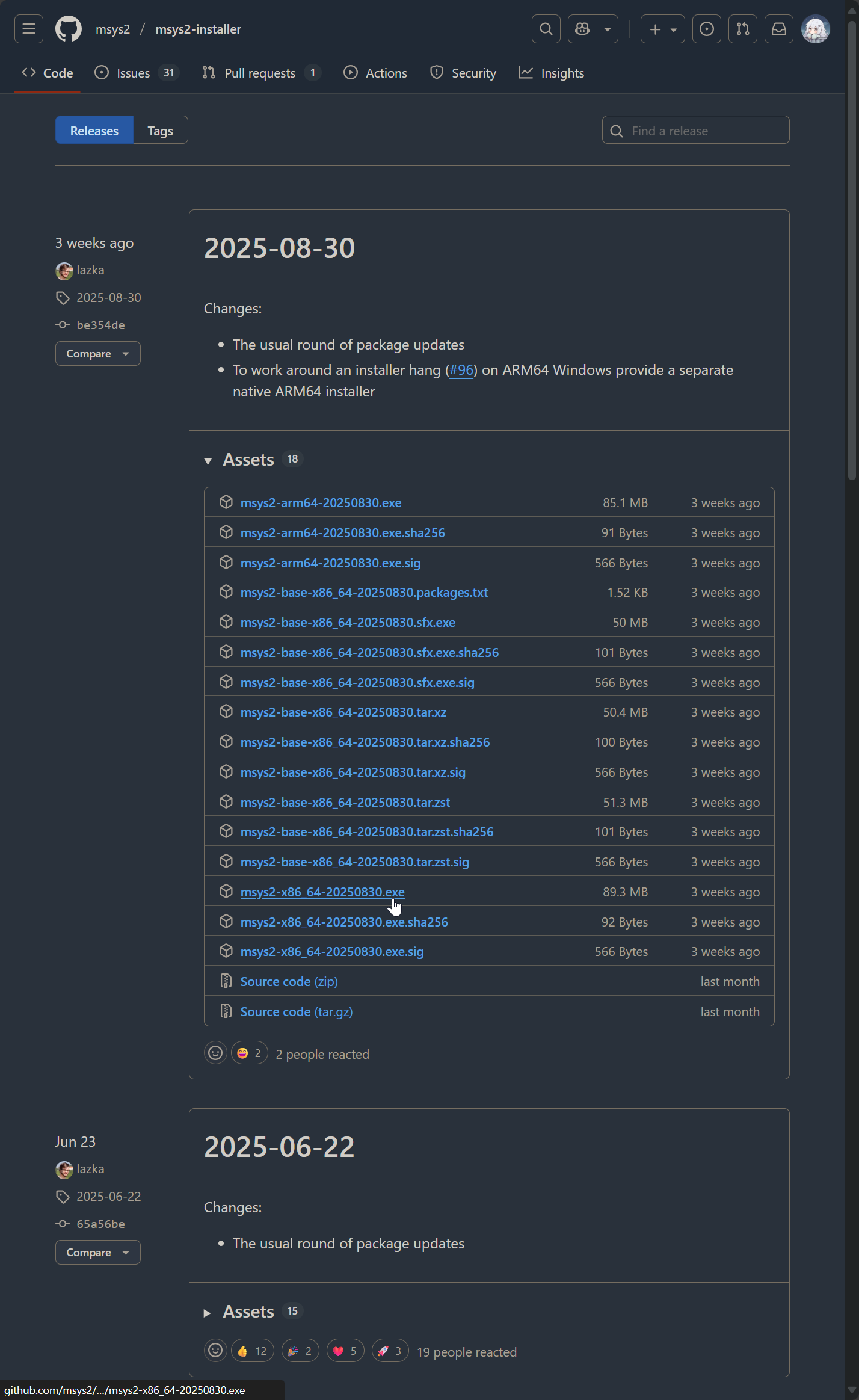
Note: If you cannot access the Github page due to network restrictions, you can alternatively go to the author's cloud storage to download the latest version available at the time of writing (20250830).
- After downloading, open the installer and proceed with the installation.
Note: If you change the installation directory, please remember the path you chose.
- After installation, do not uncheck the option to launch MSYS2, click Finish.
- Once the command-line window opens, enter the following command to download the
MinGW-W64compiler:
pacman -S --needed base-devel mingw-w64-ucrt-x86_64-toolchain
- You can simply press Enter for the two subsequent prompts.
- Wait for the installation to complete and then close the window.
3. Configure the MinGW Compiler
- Open your computer's
Aboutpage and click onAdvanced system settings(as shown in Figure 3-1)
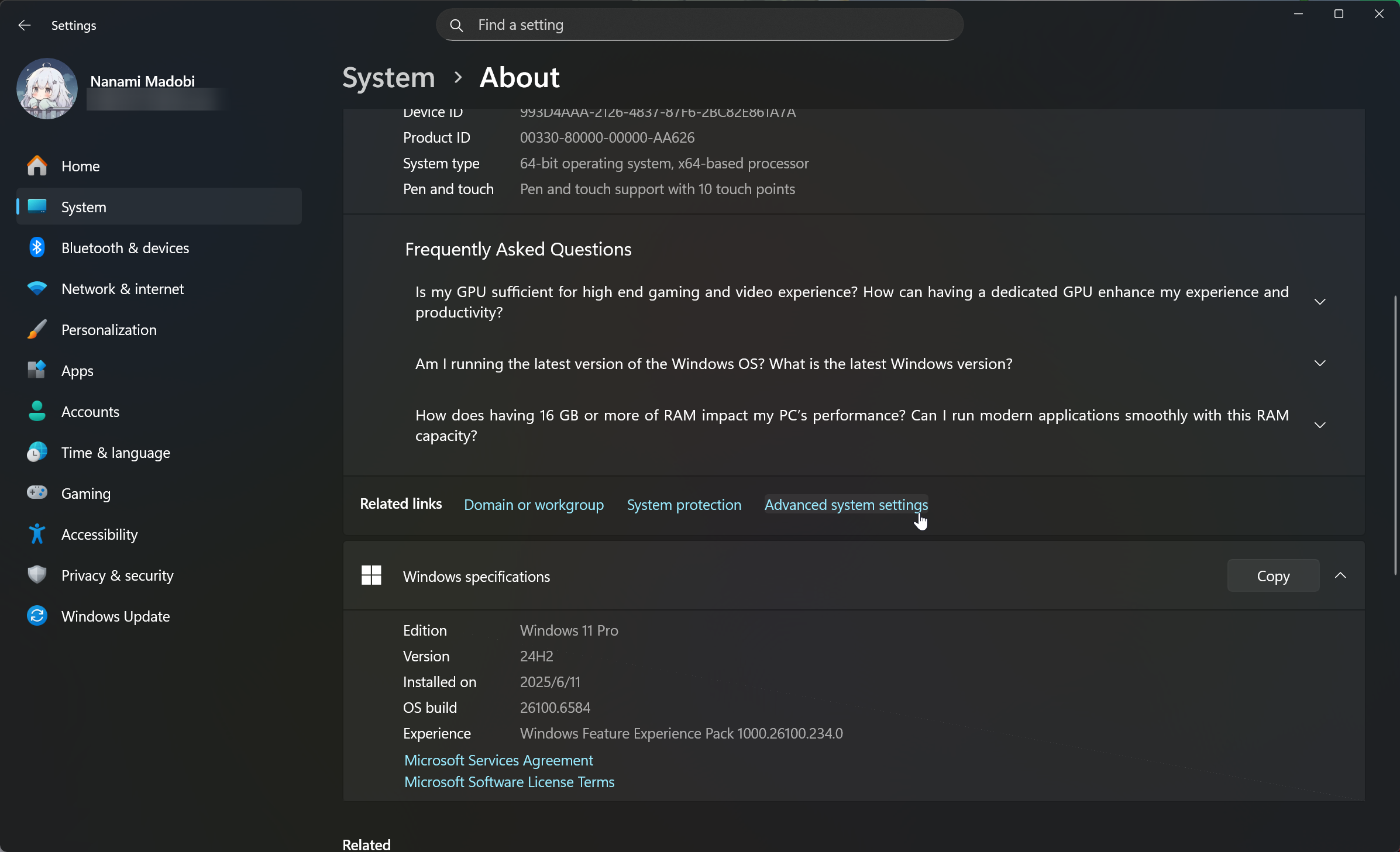
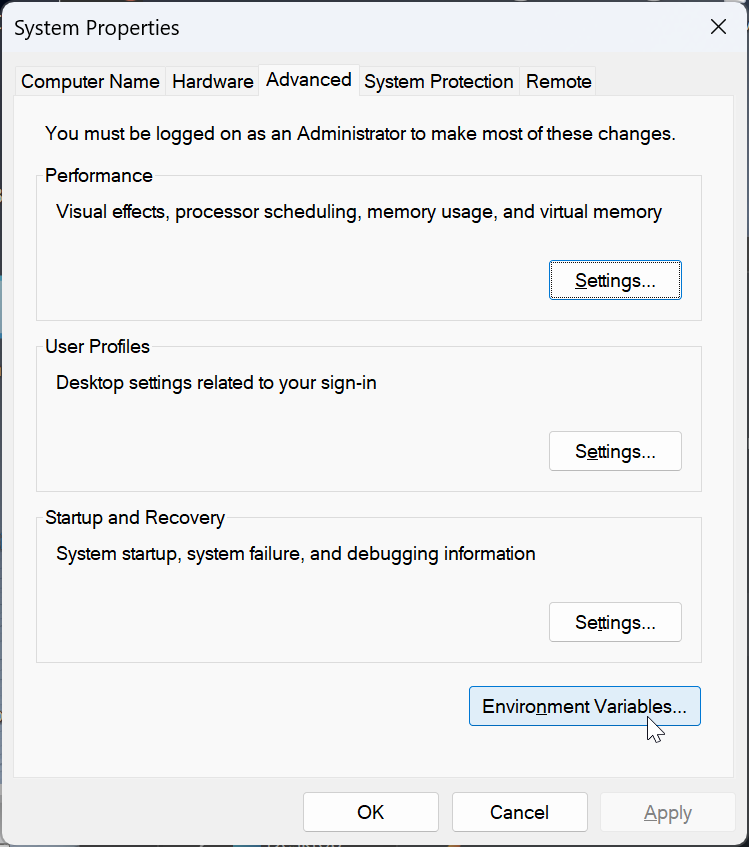
Figure 3-1 - In the window that opens, click on
Environment Variables...(as shown in Figure 3-2)
- Find
PathunderSystem variablesin the lower section.
Note: Why modify system variables instead of user variables? Answer: Modifying system variables means no reconfiguration is needed after switching users, and it also avoids some permission-related issues.
- Select this item, click
Edit...below, and in the pop-up window, clickNew. - Enter the installation path of
MSYS2you noted earlier, appending\ucrt64\binto it. If you used the default location, the value should beC:\msys64\ucrt64\bin. - After adding the path, click
OK. - Open a terminal like
Command PromptorTerminaland execute the following three commands. If the output resembles Figure 3-3, the configuration is correct.
gcc --version
g++ --version
gdb --version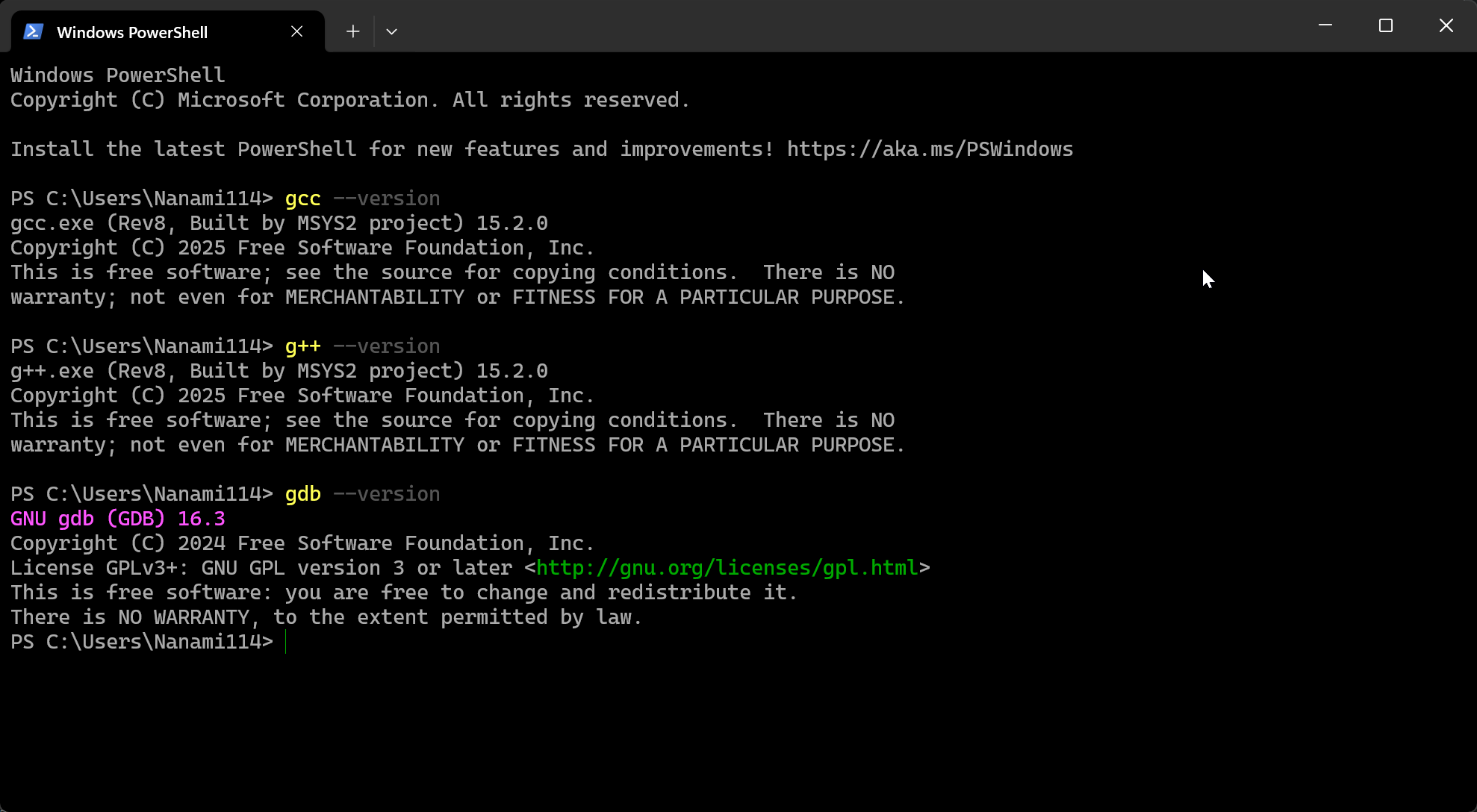
4. Configure VS Code
- Launch
VS Code. Click the fifth icon from the top in the left sidebar to switch to the Extensions view. - Switch back to the Extensions view, type
C/C++, and install theC/C++extension. - After installation, click
Filein the top-left corner -->New Text File. - In the new file, enter the following code:
#include <stdio.h>
#include <windows.h>

int main() {
    printf("Hello, World!\n");
    MessageBoxA(NULL, "Hello, World!", "Greeting", MB_OK);
    system("pause");
    return 0;
}- After entering the code, select
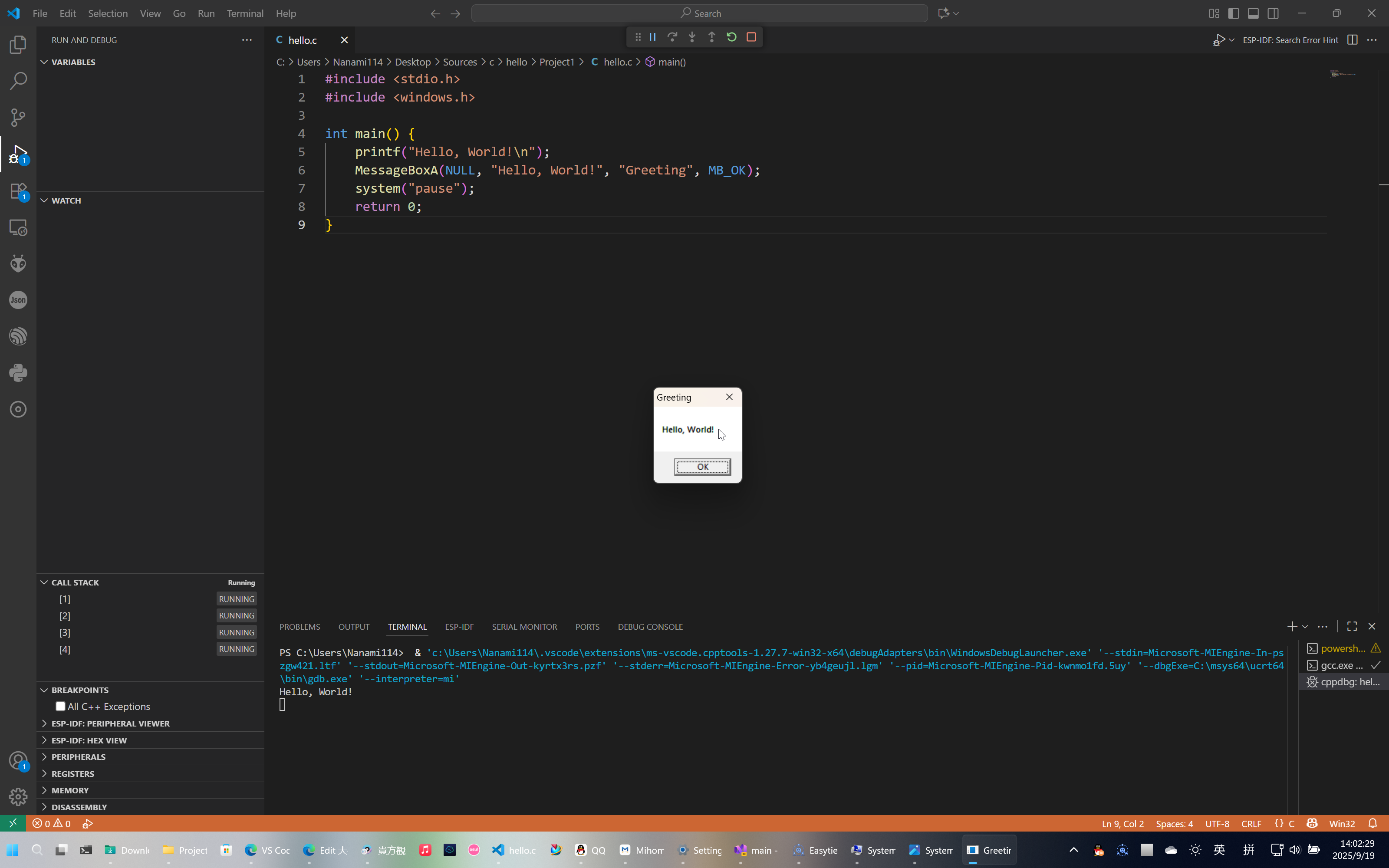
Runin the top-left corner -->Start Debugging, and choose the first/default option as shown in Figure 4-1.

- Observe the output in the terminal at the bottom. If everything is normal, you should see a dialog box pop up and
Hello Worldprinted in the terminal, as shown in Figure 4-2.
- At this point, all configuration work for the C environment is complete. Congratulations on taking the first step on the long journey of learning the C language!
Postscript
The author is not a professional in the software industry. If there are any omissions or errors, please feel free to point them out! Thank you for reading.
University Student Basic Tutorial: Setting Up a C Language Compilation Environment in VS Code
https://blog.nanami.tech/en/archives/102/